
Storefront widgets
Widgets are the parts of Meisei your shoppers see on your store. This page helps you choose them, install them and make them match your theme.
What each widget shows
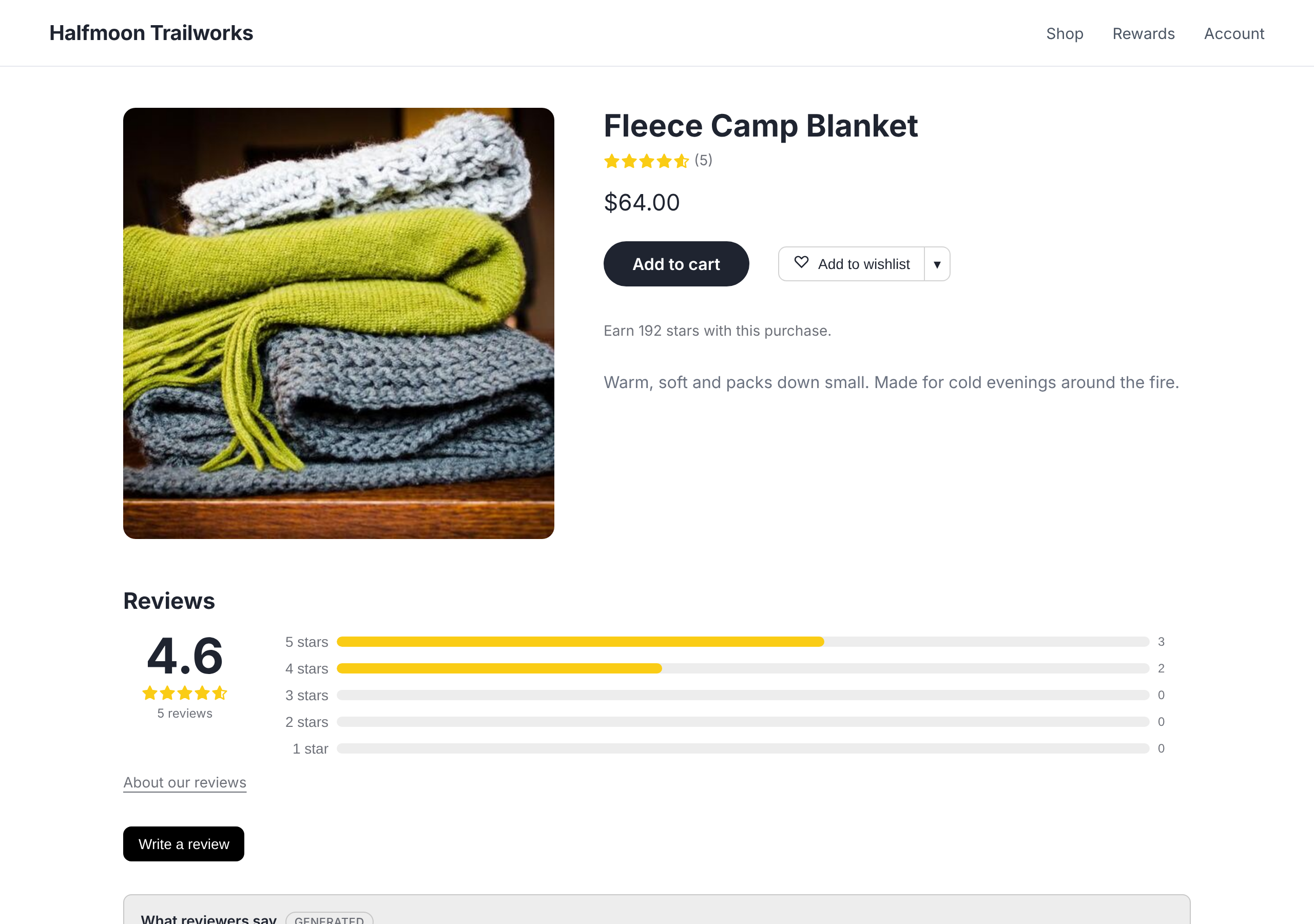
- Star rating: a product's average and review count, for product cards and the top of a product page.
- Product reviews: the full list for a product, with the rating breakdown, a "Write a review" form, your replies, the "What reviewers say" summary and your review questions. Shoppers can sort by newest, highest, lowest or most helpful, click a bar in the breakdown to filter, vote reviews helpful, and report one that looks fake or abusive. Reports come to you to decide on. See Moderating reviews.
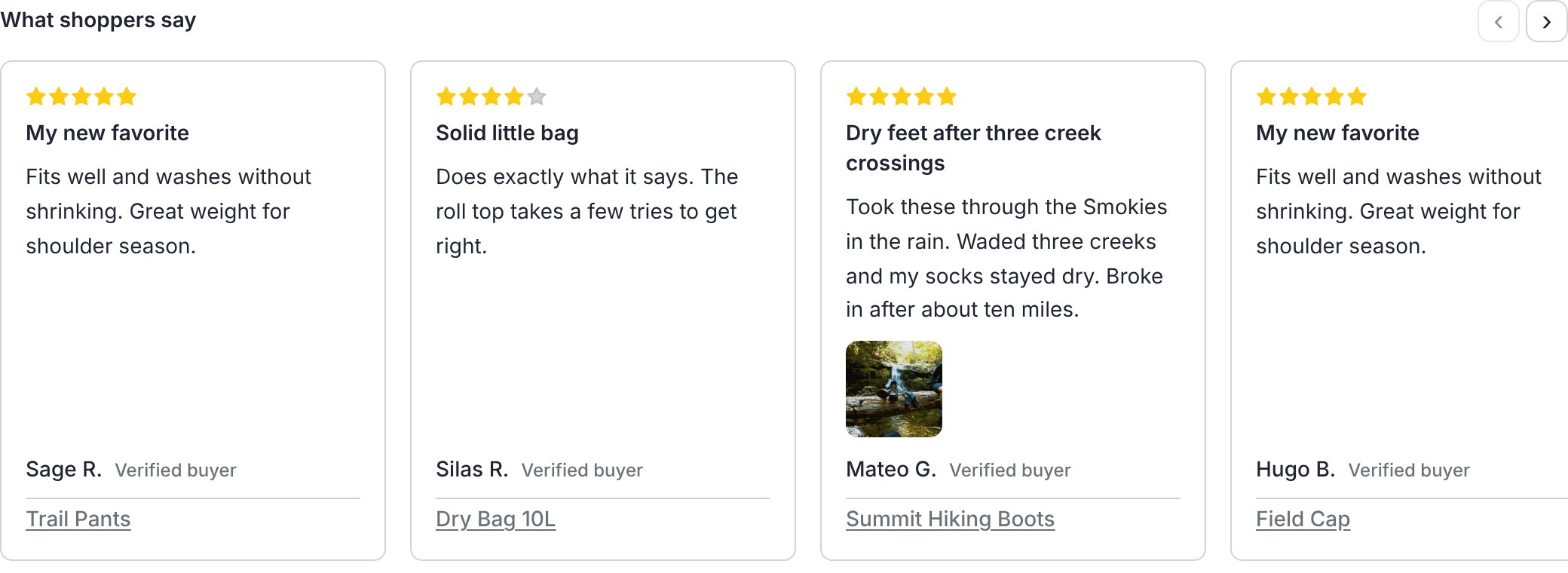
- Reviews carousel: a sliding row of your newest reviews, for a home page or landing page. You can put the highest rated first or set a lowest rating to show instead. Either way the row shows a selection, so give it a heading that says so, such as "Some of our favorite reviews", rather than presenting it as what customers think overall.
- Review photos and videos: a wall of the photos and videos shoppers attached to reviews, newest first. Clicking one opens it full size with the review behind it. A lowest rating makes this a selection too, and the same goes for its heading.
- Wishlist button and wishlists: a save button for a product page, and the customer's lists on their account page. See Wishlists.
- Wishlist banner: a small card at the top of a product page that only appears when somebody arrives from a shared wishlist link, showing the shopper's own photo and note for that product. See Sharing and gift purchases.
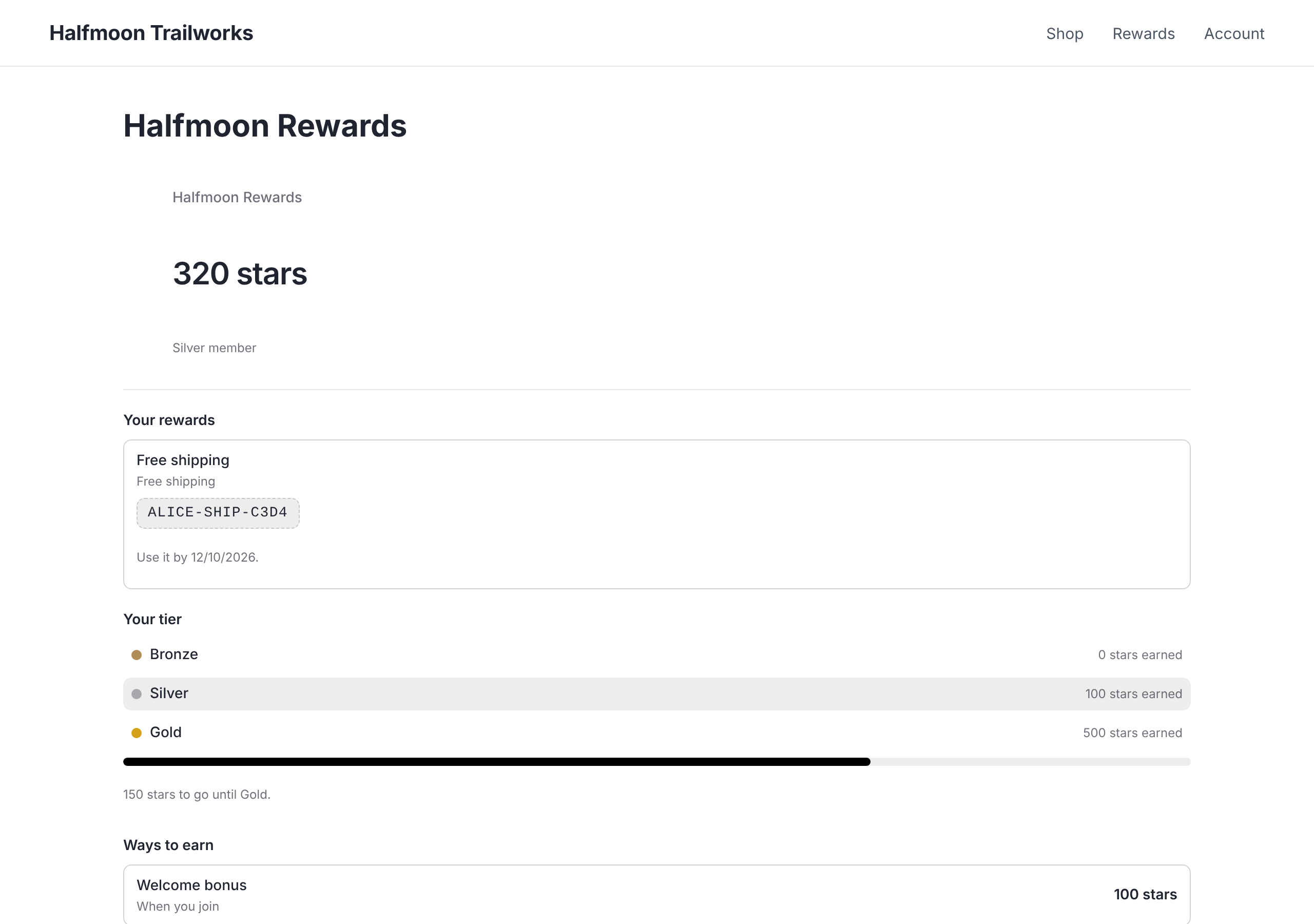
- Loyalty: the program panel, either on a rewards page or behind a floating button in the corner of every page, plus a "Earn 250 points with this purchase" badge for product pages. See Loyalty.
Reviews written on your storefront wait in Reviews unless auto-publishing is on and screening doesn't flag them. A signed-in shopper with an order for the product is marked as a verified buyer, and you can accept reviews from verified buyers only.
A review whose reviewer earned something for writing it, such as loyalty points, carries a Rewarded review label beside Verified buyer in the reviews widget, the carousel and the photo wall. Pointing at the label, or reading it with a screen reader, explains that the reviewer earned a reward for writing a review and that the reward didn't depend on what they wrote. See Mark a rewarded review.
A review by someone who works for your store, or is otherwise connected to it, carries a Connected to the store label in the same places, once you've marked it. Pointing at the label, or reading it with a screen reader, explains that the reviewer works for or is connected to the store. See Mark a reviewer connected to your store.
Install the widgets
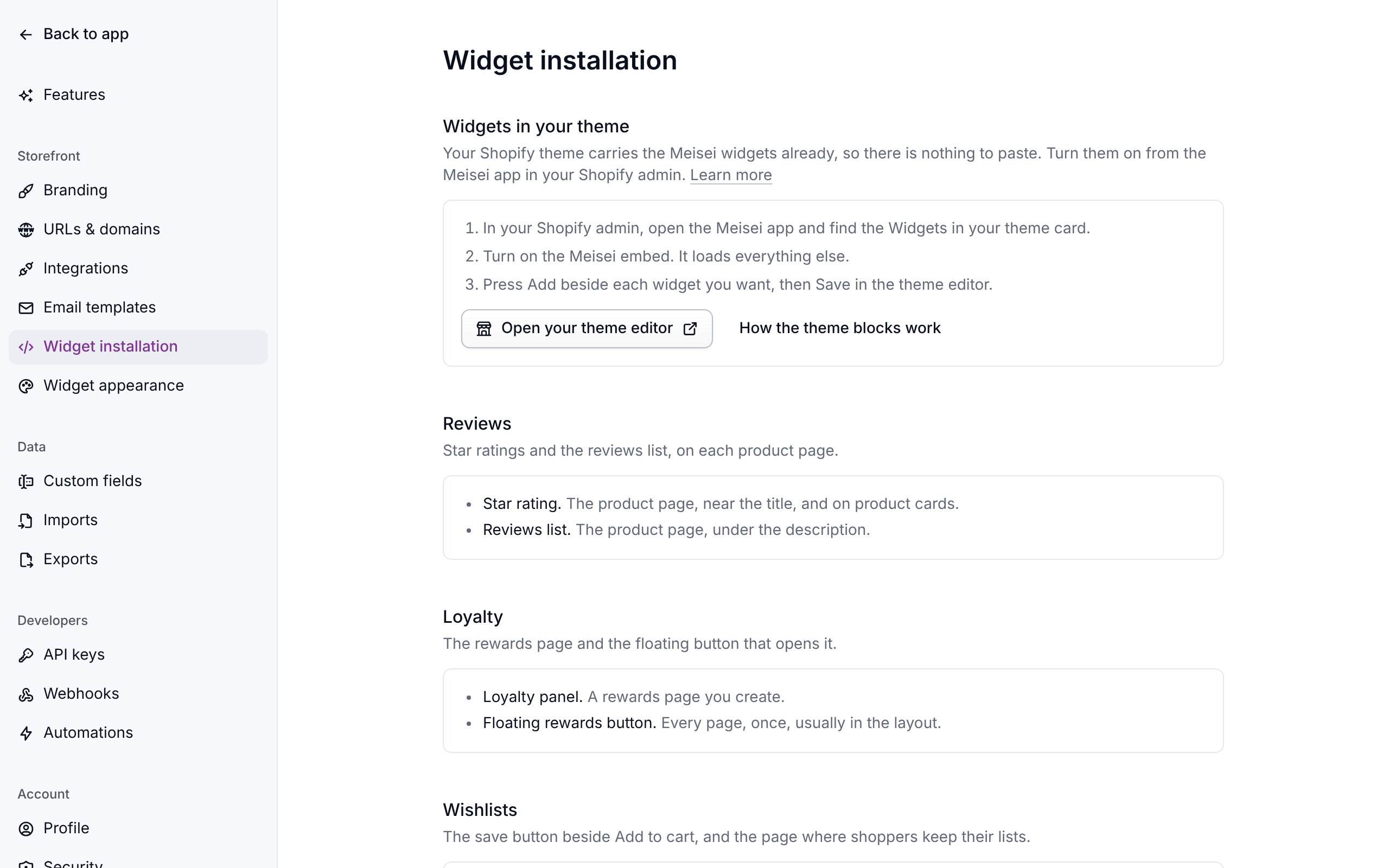
- On Shopify, open the Meisei app in your Shopify admin and turn on the Meisei blocks you want. The card that appears once an area is set up points you there, and each block has its own settings, such as "Only this product". See Widgets in your theme.
- Anywhere else, your developer adds one script tag and a line per widget. Settings → Widget installation has the snippets ready with your key filled in, as HTML or React, with a copy button for each. Copy a prompt for an AI agent hands the whole job to a coding assistant. The same card appears at the top of an area's screens right after its setup. Or send them Installing the widgets.
Appearance
Out of the box the widgets take their font and text color from your page and have a transparent background, so on most stores there is nothing to do. When there is:
-
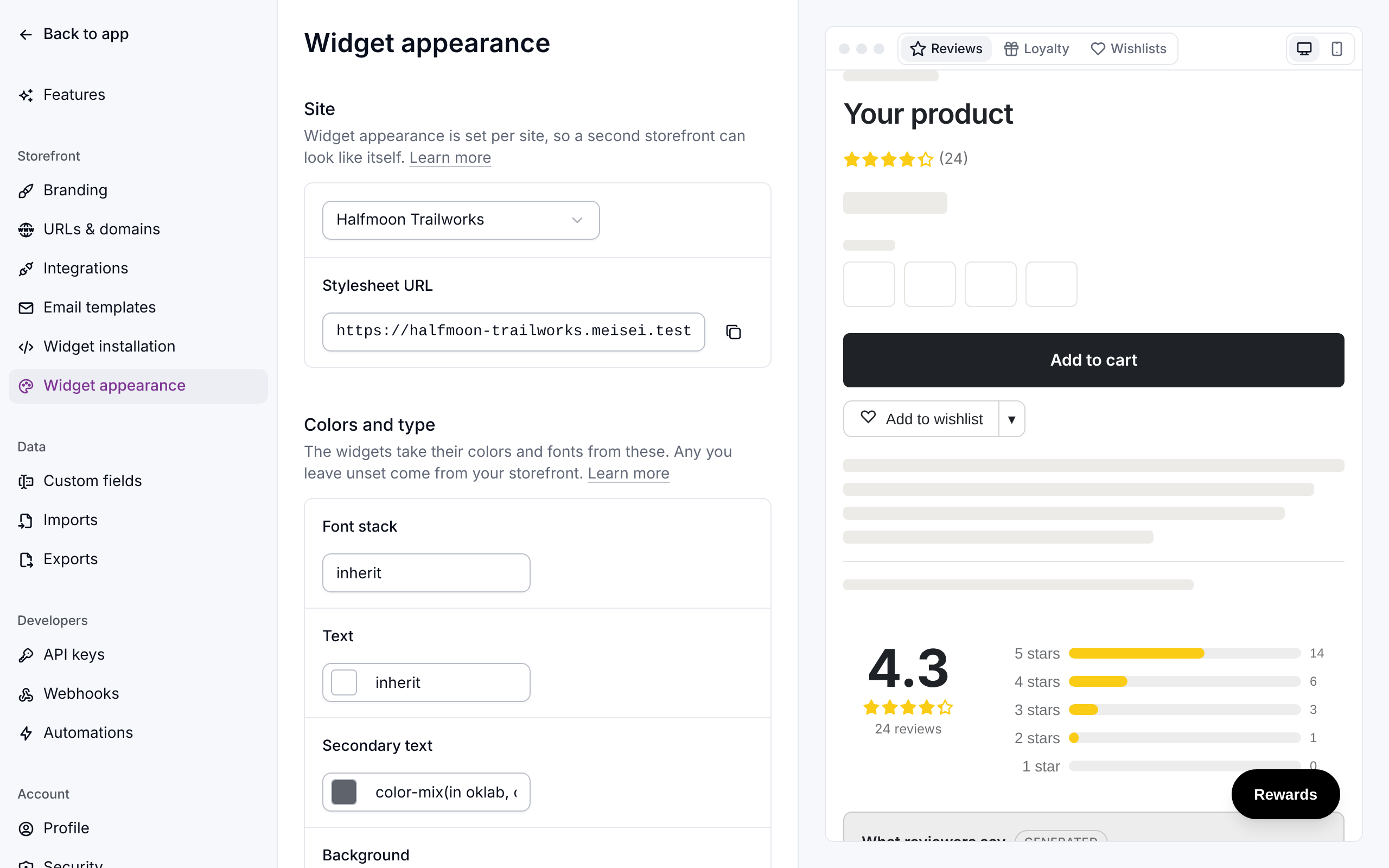
Change the colors, font, corner radius and star color in the form. The preview beside it shows the real widgets with sample data on one of your own product pages, when Meisei could read your store, or on a stand-in page. Pick reviews, loyalty or wishlists above it to look at each, and switch to a phone with the buttons on the right.
-
Save. Your storefront picks the change up within five minutes.
Check the accent color against the text on it: a light accent with light text is unreadable.
Per site
Appearance is set per store, so a second storefront can look like itself. Pick the store at the top of the page. Copy from another site copies the colors and custom CSS across in one go. It copies once, so a later edit to either store doesn't change the other. See Running more than one store.
Custom CSS
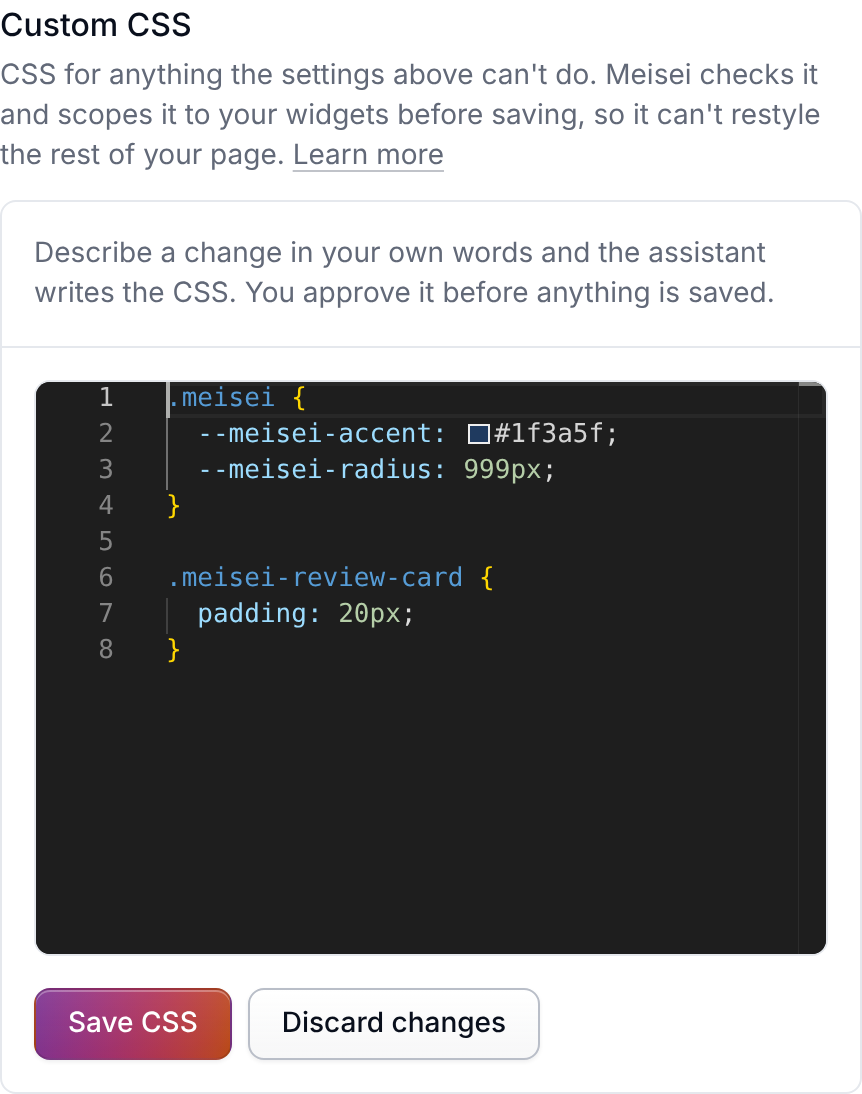
For anything the form doesn't cover, use the custom CSS box. If you'd rather not write it, choose Ask the assistant. The assistant opens with this site mentioned and the start of a request typed, and you finish the sentence with what you want. It reads your current CSS, writes the change, shows you a preview of the widgets with it, and asks you to approve it. Nothing is saved until you approve, and once you do, the editor and the preview on this page update on their own. Ask for a look (colors, spacing, type, borders, corners), not a layout. It can't reorder sections, hide the rating breakdown or remove the verified-buyer badge.
Your CSS can only restyle the widgets, never the rest of your page. Anything Meisei has to remove is reported back to you when you save. The details are under Custom CSS rules.
Putting an earlier version back
Every save of the custom CSS is kept. The last 50 are listed under Earlier versions with who saved them and what they asked for, and Restore puts one back. Colors are not versioned: use Reset beside a color to go back to the default.
Reply to a review
Open a review in Reviews and use the reply composer. A published reply appears under the review on your storefront, headed "Response from" the name you replied as. A draft reply is never shown to shoppers.
If something isn't working
- A widget shows the default colors for a few minutes after a change. The stylesheet is cached for five minutes. Wait, then reload.
- A review you just published, hid or answered isn't on the storefront yet. What shoppers see is cached so your storefront stays fast. A change shows up within about ten minutes, and usually within one.
- A rule in your custom CSS did nothing. Check the message shown when you saved. Rules for the page outside the widgets, imports, fonts and outside URLs are removed.
- Wishlists or the loyalty balance show the signed-out view on a custom store. The storefront isn't identifying the customer. Your developer needs Identifying the customer.
- Stars are not showing in Google. See Structured data, and give Google time to recrawl.
Next steps
- Widgets in your theme for Shopify stores.
- Collecting reviews to set up review questions.
- Wishlists and Loyalty for what those widgets do.
For developers
The script tag, the custom properties, signing a customer in and calling the widget API from a server are in Installing the widgets. React and Next.js stores start at React widgets.