
Loyalty emails
Meisei can send up to six emails to your loyalty members. You choose which go out and what they say.
Where the emails live
The member emails are sent by an automation called Loyalty member emails. Meisei adds it for you, switched on, when you create your first loyalty program, so the emails work from day one without any setup.
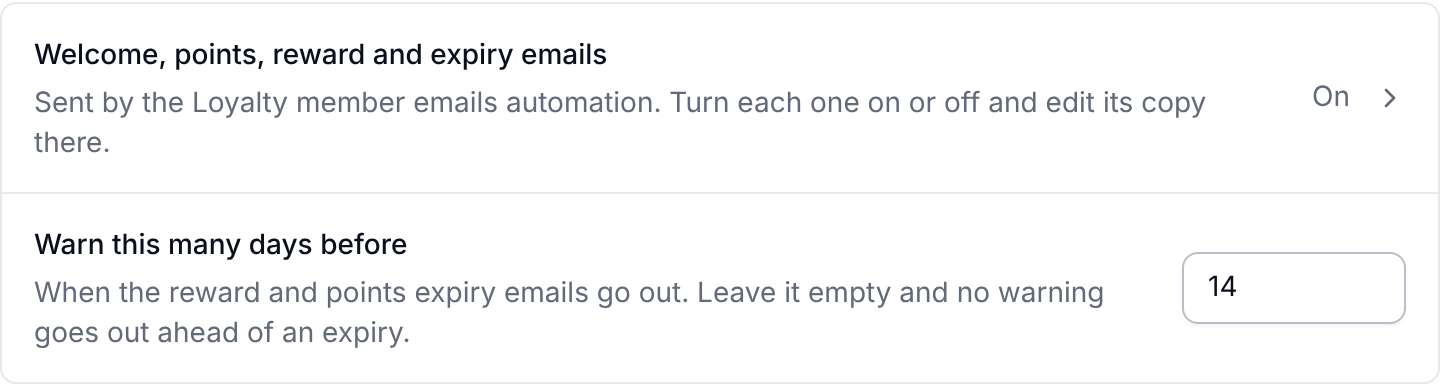
To open it, click Welcome, points, reward and expiry emails under Loyalty in
Settings → Features → Loyalty, or find it under
Settings → Automations.
Turn the whole automation off with Runs on its events on its page and no member emails go out at all.
Choose which emails go out
Each email has its own On or Off choice under Configuration on the automation's page. Change one and save.
Warn members before something expires
Warn this many days before, beside the member emails row in Settings → Features → Loyalty, sets one window for the whole program, covering both rewards about to lapse and points about to age out. Leave it empty and no warning goes out. Two weeks is a sensible starting point.
Change the wording
- Open the Loyalty member emails automation from Settings → Features → Loyalty, where the Welcome, points, reward and expiry emails row opens it.
- Under Emails, pick the email and change its subject, preview line and wording. The preview beside it shows sample member details.
- Save.
The emails are sent inside your store's email layout, so your logo, colors and footer come from there. Amounts are already written in your program's words: a points balance shows as "1,200 beans", so you don't need to add a unit after it. See Email template fields for everything you can put in an email.
Links in the emails open your loyalty page, or your store's home page if you haven't set one.
Who receives them
- Reward claimed reaches a customer who opted out of marketing email, because the code is what they spent their points on. Because it reaches those customers, keep promotions out of its wording.
- Every other email skips customers who opted out of marketing email, the welcome included, and customers you imported who have never had an email from you.
- A paused program sends only the two expiry warnings, since points and rewards keep expiring while it's paused.
If something isn't working
- No member emails go out at all. Check that the Loyalty member emails automation is turned on under Settings → Automations.
- A member didn't get the welcome email. Check whether they opted out of marketing email, were imported and never emailed, or had joined the program before. The automation's Recent runs say why nothing was sent.
- No expiry warnings are going out. Set Warn this many days before under Settings → Features → Loyalty; an empty window means no warnings.
- I deleted the automation. Create a new one from the Loyalty member emails template under Settings → Automations.
Next steps
- Send members somewhere useful from the email: The loyalty page.
- Set when rewards and points expire: Loyalty rewards and Points.
- See what else an automation can do: Automations.