
Sending Meisei to Klaviyo
Send your reviews, loyalty and wishlists to Klaviyo as events, and keep each customer's points balance, tier and review history on their Klaviyo profile. Your flows and segments can then use everything Meisei knows without you copying anything across.
Connect Klaviyo
- In Klaviyo, open Settings → API keys and create a private API key. Give it write access
to profiles, events and lists. The key starts with
pk_. - In Meisei, open Settings → Integrations and click Klaviyo, which reads Not connected on the right.
- Paste the key and press Connect.
Meisei checks the key with Klaviyo before saving it, so if you paste the wrong one you find out
straight away. The public site ID starts with pk- and will not work here.
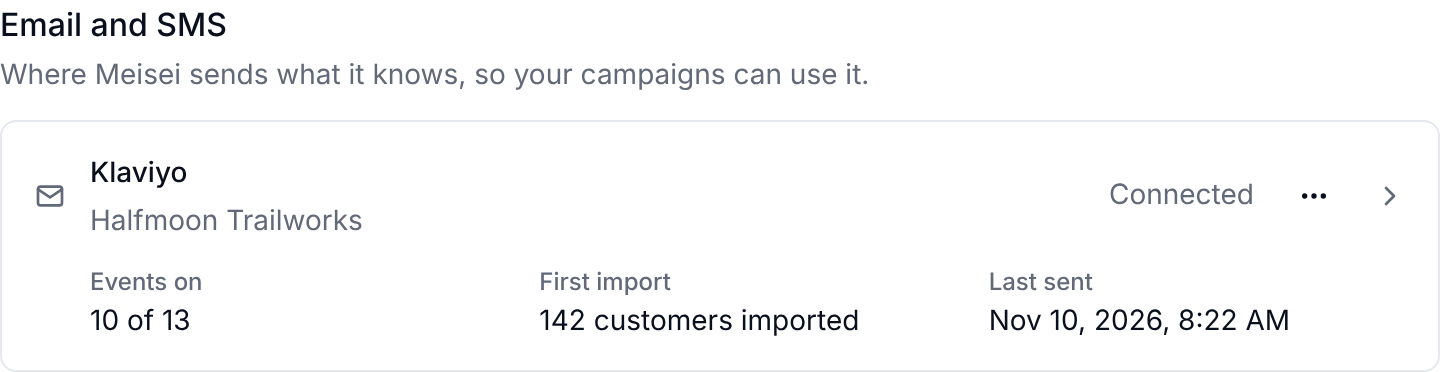
Connecting also imports what Meisei already knows about your customers, so your segments work from the first day rather than filling up slowly as people shop. The page tells you how many customers went across, under First import.
Choose what gets sent
Click Klaviyo on the integrations page. Each event has a switch of its own, and each one becomes a Klaviyo metric you can trigger a flow on or build a segment from.
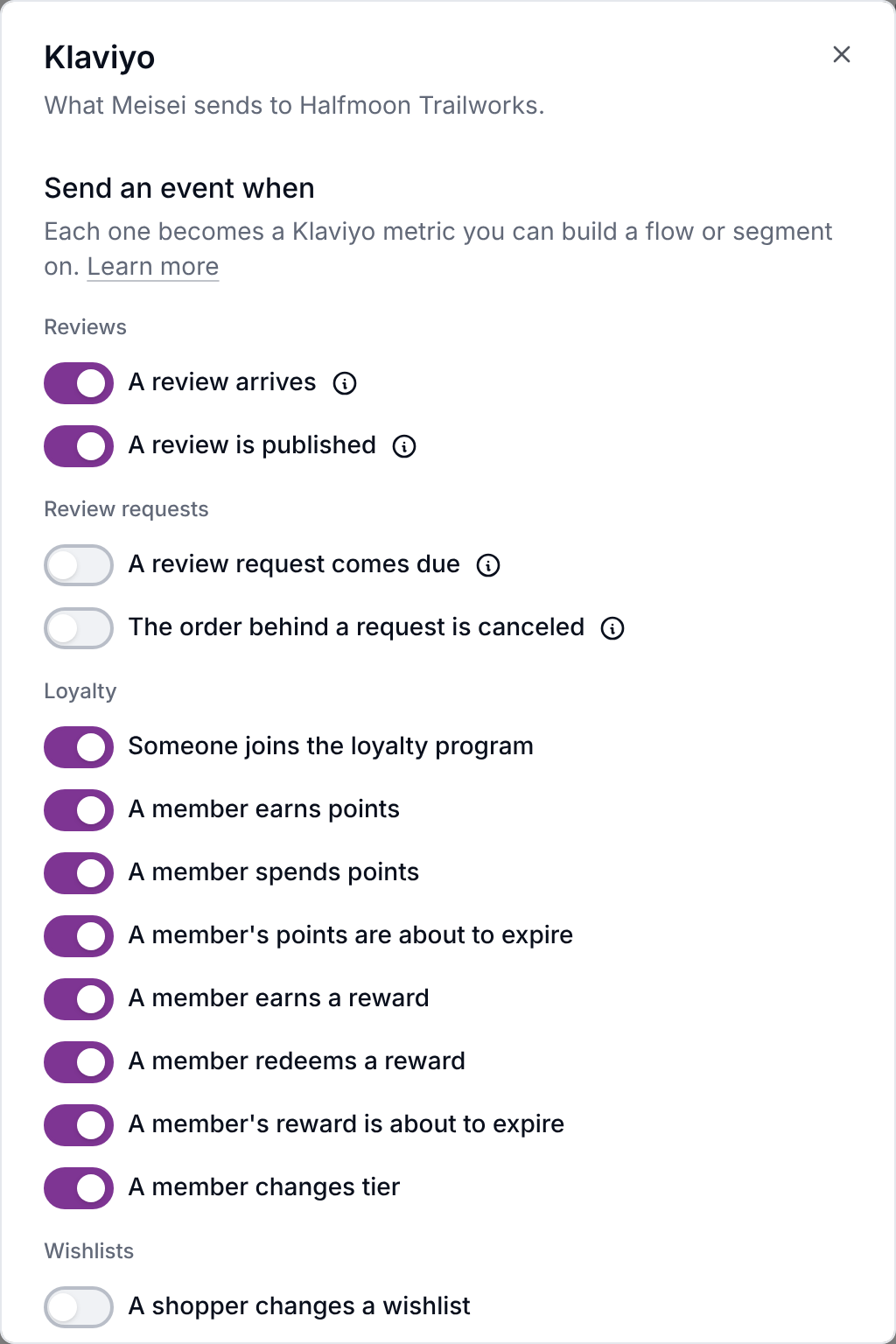
In Klaviyo, each of these appears as a metric named after what it is: Meisei Review Created, Meisei Points Earned, Meisei Reward Earned and so on. Search for "Meisei" when you're building a flow and you'll find them together.
What lands on a customer's profile
With Keep Meisei properties up to date switched on, Meisei writes these to each customer's Klaviyo profile as things change:
- Meisei Loyalty Member, Meisei Member Since
- Meisei Points Balance, Meisei Lifetime Points, Meisei Points Expiring At
- Meisei Loyalty Tier
- Meisei Review Count, Meisei Last Review At
- Meisei Wishlist Items
These are the current state rather than a history, which is what a segment needs. "Gold members with more than 500 points who haven't left a review" is one segment built on three of them.
Meisei waits about half a minute before writing, so an order that earns points, moves someone up a tier and issues a reward costs one update rather than three.
Adding customers to a list
Pick a list under Add customers to and Meisei will add anyone it hears from. Anyone who has opted out of your emails stays out of the list.
Meisei only adds people to the list. It never changes anyone's email marketing consent in Klaviyo, so a campaign sent to the list reaches the people who have agreed to marketing email, through your store's sign-up forms or Klaviyo's own, and skips everyone else.
Sending review requests from Klaviyo
If you'd rather write your review request email in Klaviyo, you can. Meisei keeps deciding who gets asked and when, and Klaviyo does the sending.
- Open Settings → Features → Reviews and switch on Send through Klaviyo instead, just under When requests go out. Your choice of when to ask and how long to wait stays as it is, and Meisei stops sending its own email.
- In the Klaviyo settings window, switch on A review request comes due.
- In Klaviyo, create a flow triggered by the Meisei Review Request Eligible metric, and send your email straight away. Meisei has already waited out the delay you set, so a second delay here makes the ask later than you meant.
The event carries everything the email needs: a Products list, and for each product its title, image, a Review URL, and a Review Rating URLs list so you can put five stars in the email that open the form with the rating already chosen. Request Number is 1 for the first ask and 2 or more for a follow-up, so one flow can word them differently.
The switch covers every review request, so there is no way to end up asking twice. A follow-up you send from a request's page, or from your own review reminders, goes to Klaviyo too.
If your Klaviyo flow waits
Add Meisei Review Request Canceled if your Klaviyo flow adds a delay of its own, or has a reminder step days later. Meisei sends it when the order behind a request Klaviyo already received is canceled. A flow filter on it stops the ask going out for an order that no longer exists. If your Klaviyo flow sends immediately, you do not need it.
When something stops working
If Klaviyo turns down a key (you deleted it, or it lost a permission), the integrations page shows a warning under Klaviyo with what Klaviyo said. Create a new key, then disconnect and reconnect. You can check the connection any time from the ... menu.
Events are sent as things happen, and Meisei does not queue them up to resend later, so a key that has been dead for a week means a week of events Klaviyo never saw. Replace the key as soon as the warning appears.
For developers
The two review request events are ordinary Meisei webhook events, reviewRequest.eligible and
reviewRequest.canceled, so you can subscribe to them over HTTP as well and send the request
from anywhere. They fire only while Send through Klaviyo instead is on, so switch it on even
if it is your own endpoint doing the sending. eligible carries a requestNumber, which tells
a first request apart from a follow-up. See Webhooks.