
Loyalty rewards
A reward is the coupon, gift card or free shipping a member holds after a rule fires or they spend points.
Claimed and redeemed are different things
- Claimed means the member spent their points and now holds a reward with a code. The reward is pending.
- Redeemed means the code was used at checkout.
A member who can't afford a reward is told so and nothing moves. A pending reward can be canceled by the member or withdrawn by you, and either way the points come back once. Once a code has been used, neither is possible. Correct it with a manual points adjustment under Loyalty → Activity.
A reward that's canceled or withdrawn no longer counts against the rule's limit per member, and a rule with a limited number available gets that one back.
Decide when rewards lapse
Every reward except points can expire. Each rule chooses, under The reward expires in the rule editor on Loyalty → Rules:
- On the program's schedule uses Rewards expire after in Settings → Features → Loyalty. It counts days from the moment each reward is issued. Leave it empty and rewards stay usable until they're used.
- Never.
- A set number of days after it is issued.
- On one date, for everybody, which suits a campaign.

The expiry date is fixed when the reward is issued, so editing a rule later never moves a date already on a member's reward. To warn members before a reward lapses, see Loyalty emails.
Hand out a reward by hand
- Open the customer under Customers.
- Find the program in the Loyalty block on their page and click Reward.
- Pick the reward, set its value if it needs one, and add a reason for your own records.
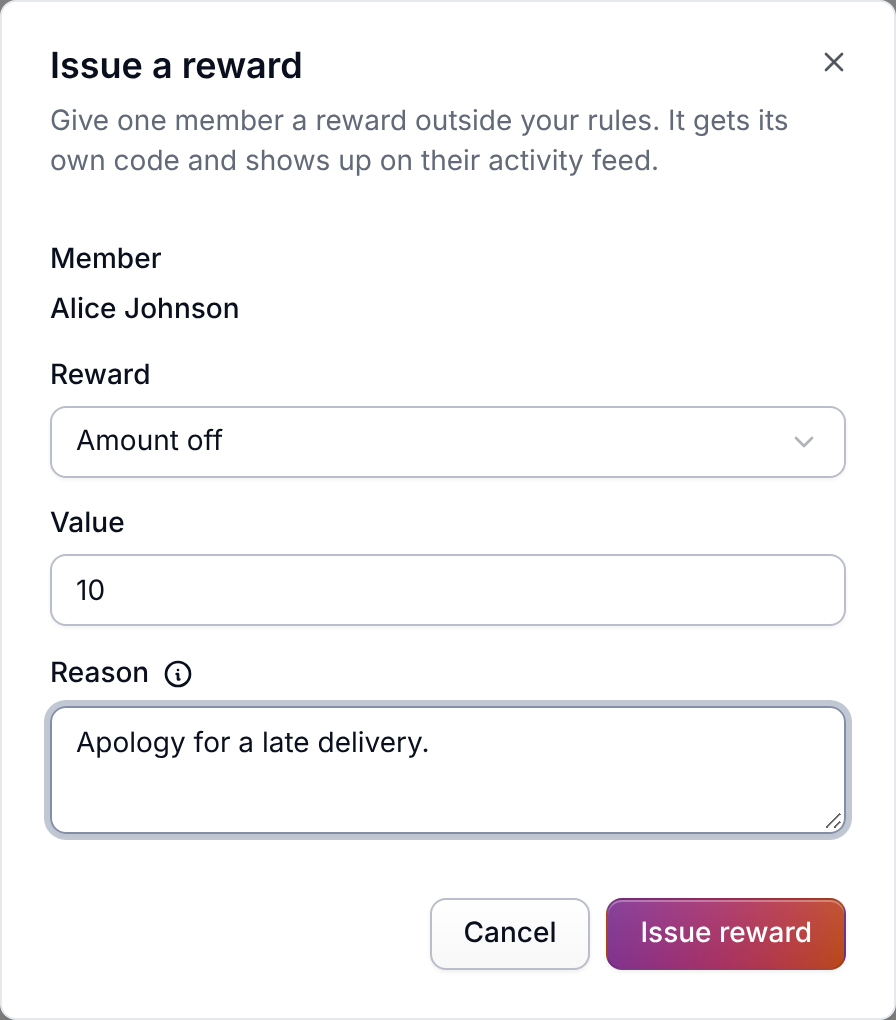
Only current members can be given a reward.
Find a reward
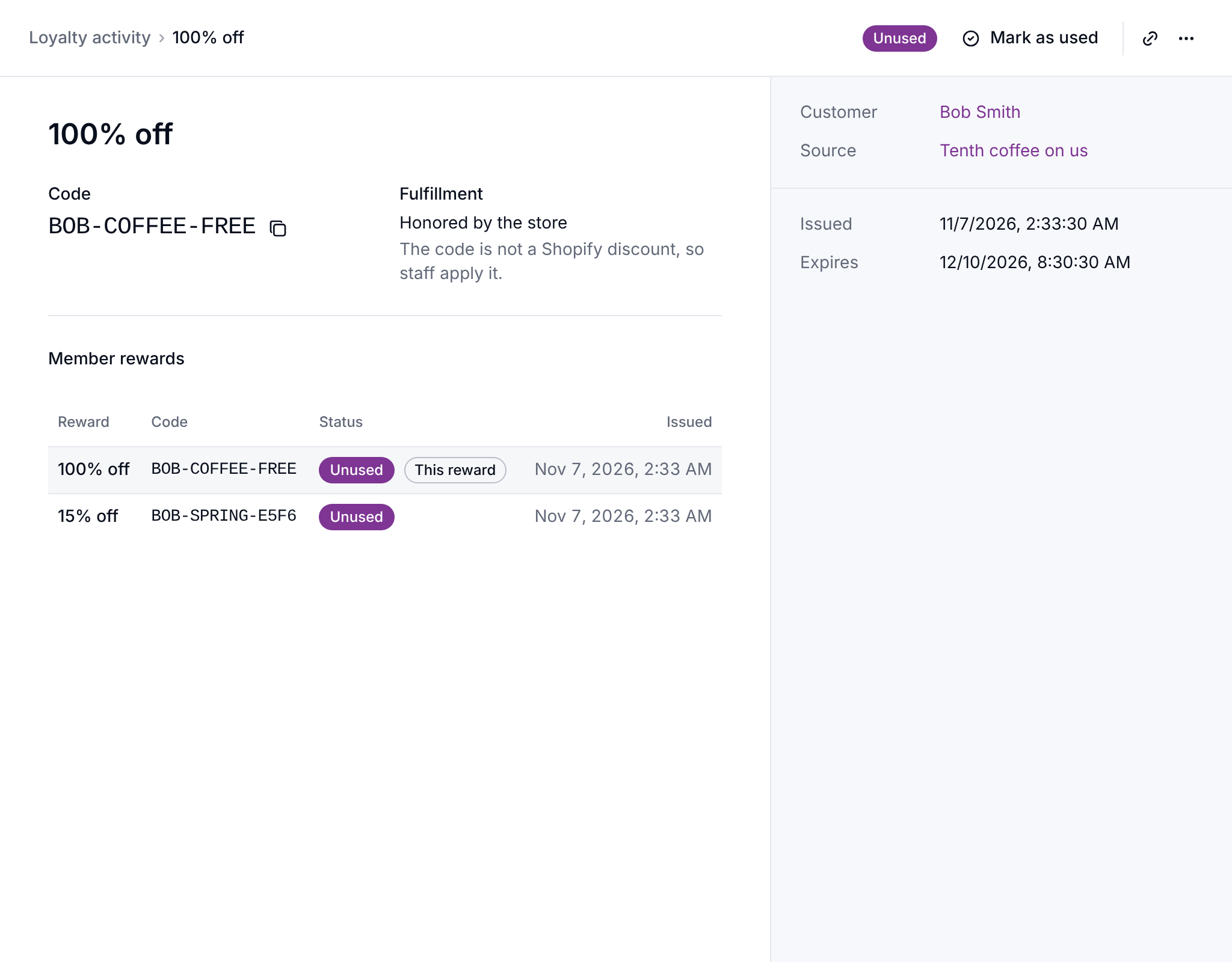
Every reward shows up in Loyalty → Activity
as a Reward entry. Open one and follow its Reward link to see the code, its status,
where it came from, and the Mark as used button. Withdraw is in the ... menu at the top right. The member's other
rewards are listed underneath, so you can move between them without going back to the feed.
Rewards at checkout
On a connected Shopify store, Meisei creates a real discount the moment a reward is issued, so the code works at checkout without anything else from you. Where Meisei can't create one, you honor the reward by hand, and the reward says so. Gift cards need Shopify Plus; Meisei won't save a gift card rule on a store that can't issue them.
Meisei switches the discount off again whenever the reward stops being usable: it expires, you or the member withdraw it, the order that earned it is canceled, or the customer or the program is deleted.
Next steps
- Write the rules that issue rewards: Loyalty rules.
- Tell members about their rewards: Loyalty emails.
- Reconcile what's been handed out: Loyalty activity.