
Loyalty at Shopify checkout
Show members their points at checkout and let them spend them on a discount without leaving the page.
Rewards work as discount codes
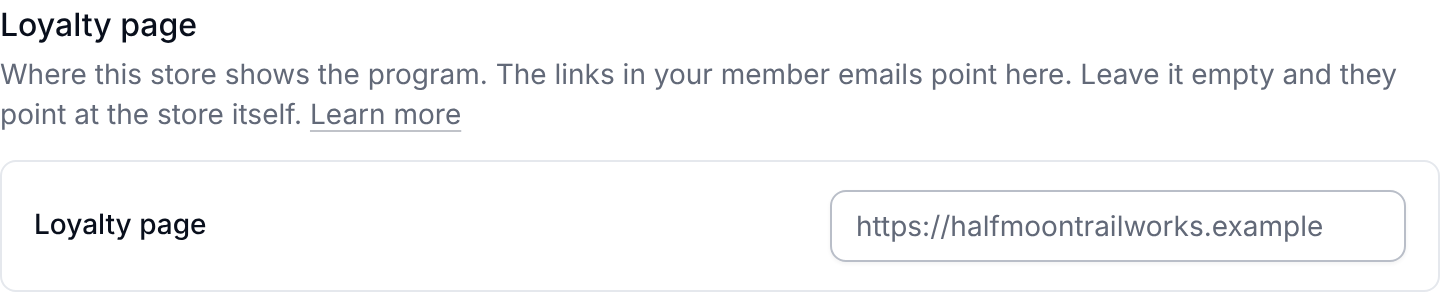
On a connected Shopify store, Meisei creates each reward a member claims as a Shopify discount, so the code works at checkout with no setup. If you run more than one store, each store's tab under Settings → URLs & domains shows a Loyalty page field for every program attached to it.
Add the checkout block
- In your Shopify admin, open Settings → Checkout and press Customize.
- Add the Meisei loyalty block where you want it, usually in the order summary column.
- Give it a heading if you like. Left empty, it uses your program's name. The other setting, an API URL override, can be left alone.
- Save.
Checkout blocks need Shopify Plus. The block goes on the checkout page only, not on the thank-you or order status pages.
What buyers see
- A signed-in member sees their points balance and tier, roughly what this order will earn, any reward codes they already hold with a one-tap Apply, and a Redeem control that spends points on a reward and applies the code in one step.
- A signed-in shopper who hasn't joined sees what the order would earn and a nudge to join on your store.
- A guest sees what the order would earn and a prompt to sign in. Guests can't spend points.
The earning number is an estimate and the block says "about". Rules limited to specific products, and per-member limits, are only applied when the order actually lands, so the final award can differ.
If your program is paused the block says so and keeps the balance visible. If the store has no published program the block shows nothing.
Next steps
- Loyalty for points, rewards and tiers.
- Connecting Shopify for the rest of the integration.