
Automating with Shopify Flow
Shopify Flow lets you build "when this happens, do that" automations without writing anything. Meisei adds both triggers and actions to Flow. A review, a tier change or a new member can start a workflow, and a workflow can award points, move someone up a tier or issue a reward.
So an automation like "a review with a photo earns 100 points" is one workflow, with no second app to connect.
You need the Shopify Flow app installed on your store. It's free, and on any paid plan.
Build your first workflow
- Open Apps → Flow in your Shopify admin and choose Create workflow.
- For the trigger, search for Meisei and pick Meisei review published.
- Add a condition: Photo count is greater than 0. Leave the rating out, so every review with a photo earns the same whatever its rating.
- Add an action, search for Meisei again, and pick Meisei award points.
- Fill in the customer (Flow offers it from the trigger), how many points, and a reason like "Left a photo review". The reason is what the customer sees on their activity.
- Turn the workflow on.
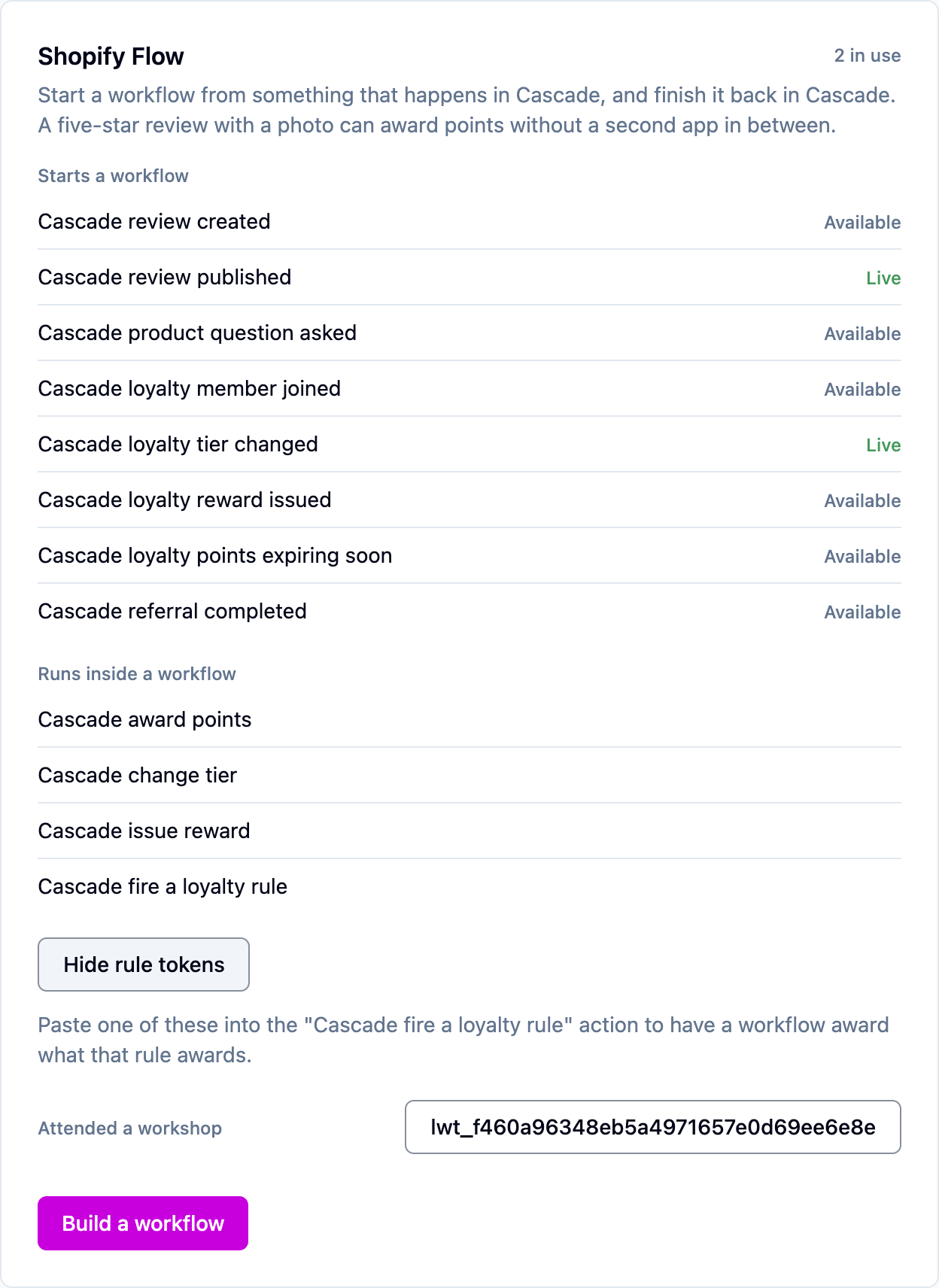
The Meisei app's page in your Shopify admin lists everything on offer and marks the triggers you already have a workflow running on.
What can start a workflow
Each one carries the details worth branching on: a review's rating and photo count, a tier change's direction, how many points are about to expire.
Triggers only fire for customers and products your store has synced to Meisei, so a
customer you imported from a spreadsheet won't start a workflow. Meisei loyalty tier
changed covers promotions and demotions in one trigger. Add a condition on Direction
(up or down) if you only want one of them.
What a workflow can do in Meisei
- Meisei award points adds points to a member's balance. Use a negative number to take points away.
- Meisei change tier moves a member into a tier and keeps them there.
- Meisei issue reward gives a member a reward without spending their points.
- Meisei report a loyalty event tells Meisei the customer did something, by name, and every rule listening for that name gives its reward.
To use that last action, give a rule the trigger Does something your own systems
report under Loyalty → Rules, type an
Event name such as order.placed, and put the same name in the action's Event name
field. Units is optional: fill it in only for a rule that scales its reward with the
value. The Meisei app's page in Shopify has Show event names, which lists the name each
rule listens for with a button to copy it.
If your store runs more than one loyalty program, the other three actions have a Program name field. Leave it empty when you only run one. Reporting an event needs no program, because every rule listening for the name responds, whichever program it belongs to.
Workflows worth stealing
- Reward photo reviews. Meisei review published, with photo count above 0, then Meisei award points.
- Look after your best customers. Meisei loyalty tier changed, with direction
upand the new tier your top one, then Shopify's Add customer tag action, so your other apps can see it. - Win back expiring points. Meisei loyalty points expiring soon, then Shopify's marketing actions, with the expiry date and the number of points from the trigger.
- Reward anything at all. Any Shopify trigger you like (a customer subscribing to email, a product review on another app), then Meisei report a loyalty event.
- Every tenth order earns a free one. Shopify's Order created, then Meisei report a
loyalty event named
order.placed. In Meisei, a rule listening fororder.placedwith Only reward every few events, like a punch card on, Events per reward set to 10, and a coupon for 100% off as the reward. See Build a punch card.
When a workflow doesn't run
Flow shows each workflow's runs and why a step failed. The usual reasons a Meisei action stops are that the customer isn't a loyalty member yet, a tier name is spelled differently in Meisei, or a store with several loyalty programs left Program name empty.
A Meisei report a loyalty event step that runs but awards nothing usually has an event name that no rule listens for. Open Loyalty → Events to check the event arrived, then compare its name with the rule's Event name, letter for letter.