
Automations
An automation is a short script Meisei runs for you when something happens in your store, on a schedule, or when another app sends it a webhook, so a job like tagging your best customers or posting reviews to Slack needs no server of your own.
Each one starts from a template you can use as it is, or from a blank script. Scripts are JavaScript, so writing your own is a job for whoever looks after your store's code; using a template is not.
Starting from a template
-
Open Settings → Automations and click Create automation.
-
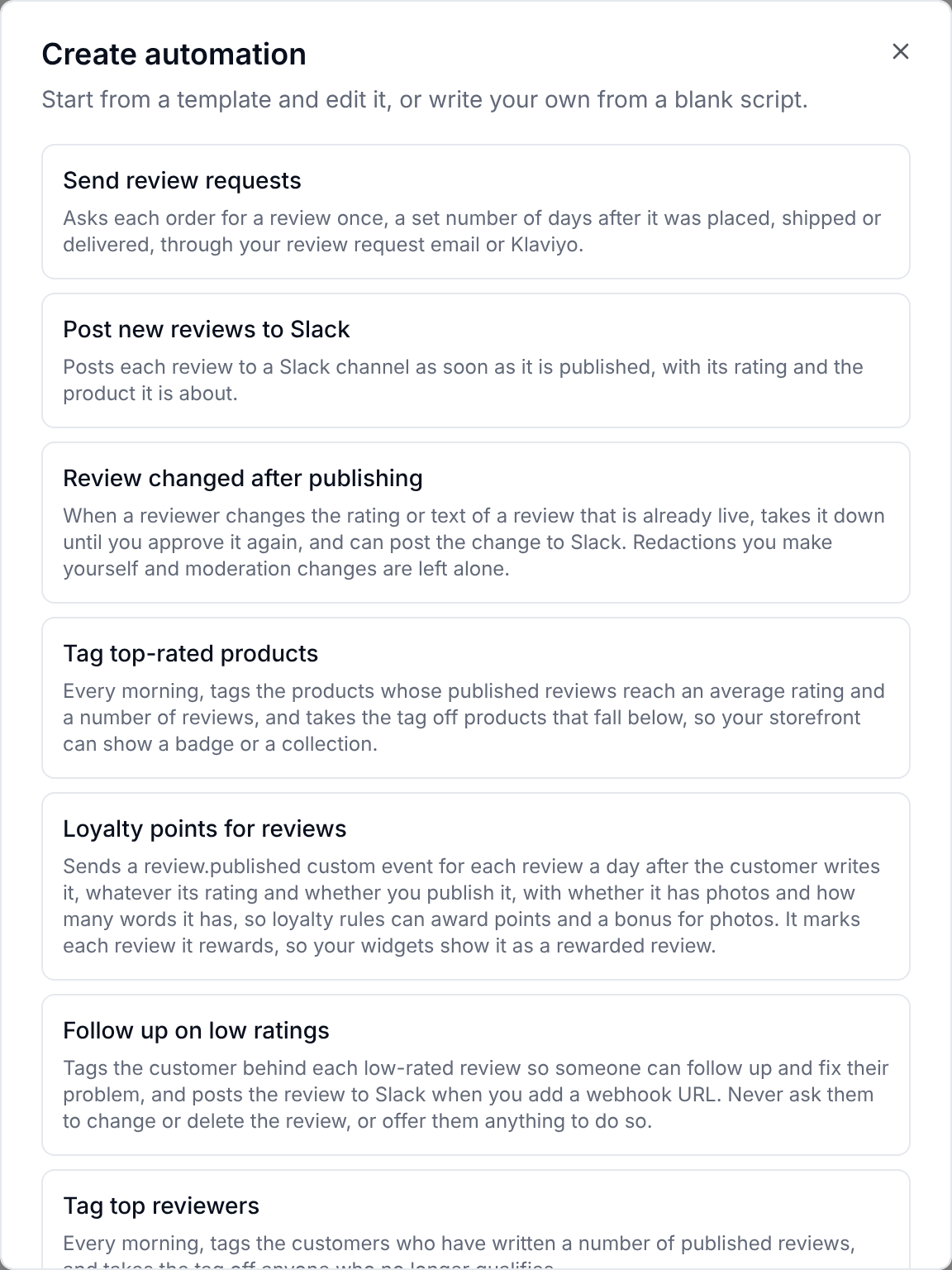
Pick a template. Each one's description in the list says what it does. See The templates below for the whole set.
-
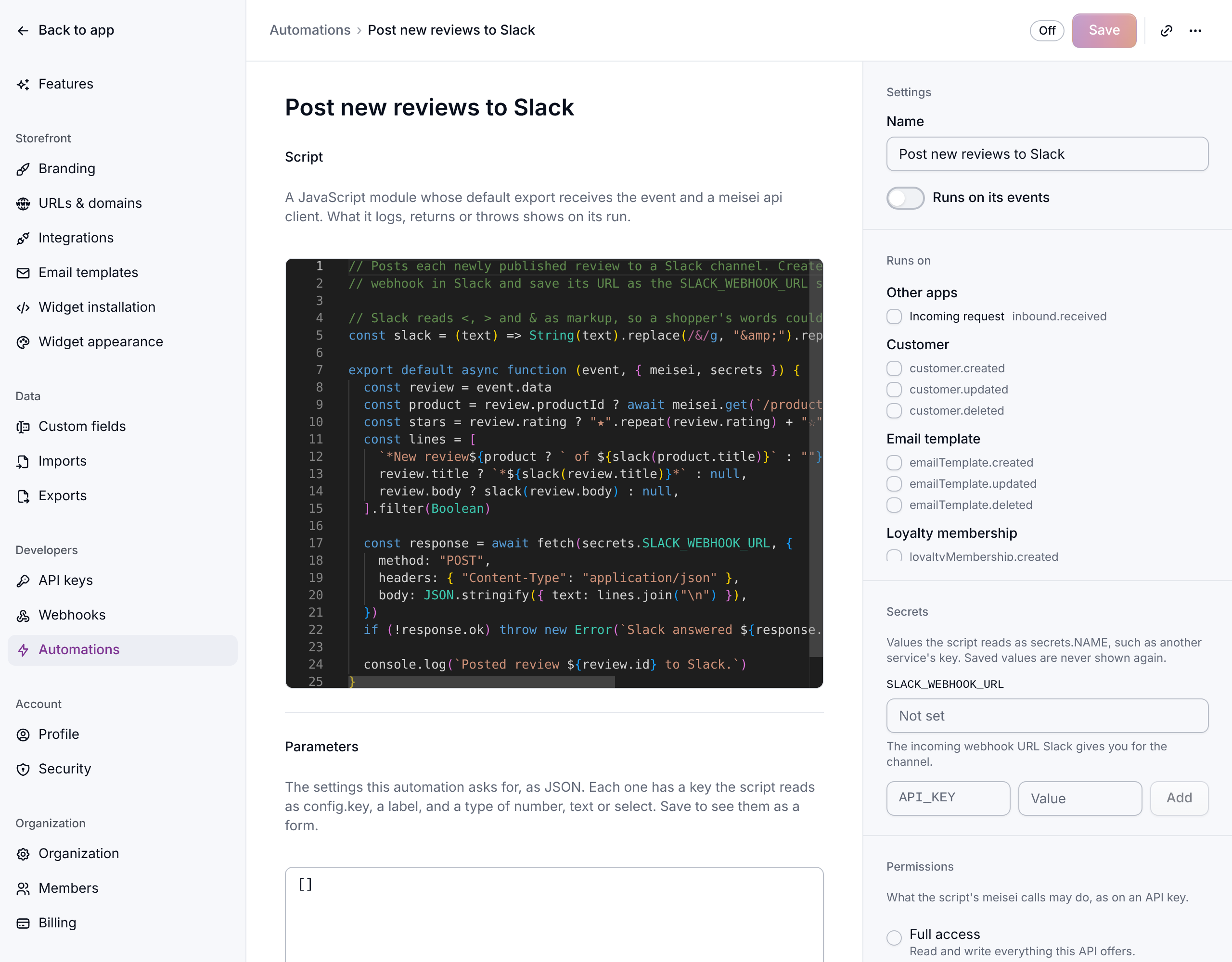
Fill in any secrets the template asks for under Secrets, such as a Slack webhook URL, and click Save. A template that needs a secret starts turned off; one whose secret is optional, such as the Slack post on Follow up on low ratings, starts on.
-
Check the values under Configuration, turn on Runs on its events and save again.
The script is yours to change. Anything a template doesn't ask about under Configuration, such as the wording of a Slack message, is a plain value near the top of its script.
The templates
Reviews
- Send review requests asks each order for a review, a set number of days after it was placed, shipped or delivered. See Collecting reviews.
- Post new reviews to Slack posts each published review to a Slack channel.
- Tag top-rated products tags products whose average rating and number of reviews reach your thresholds, and untags them when they drop below.
- Loyalty points for reviews sends a
review.publishedloyalty event for each review a customer writes, with whether it has photos and how long it is, so a loyalty rule can give points and a photo bonus. Every review earns the same whatever its rating, and whether or not you publish it. It waits a day after the review is written, because the review form lets a customer add text and photos for 24 hours. The event doesn't carry the rating, so a rule that checks the rating never matches it. Each review it rewards shows a Rewarded review label on your storefront. See Mark a rewarded review. - Follow up on low ratings tags the customer behind a low rating and, if you add a Slack webhook, posts it to Slack, so someone can get in touch and fix their problem. Never ask them to change or delete the review, or offer them anything to do so.
- Tag top reviewers tags customers with a set number of published reviews.
- Weekly review digest in Slack posts last week's review count, average rating and lowest ratings to Slack on the day you choose.
- Zendesk tickets for low ratings opens a Zendesk ticket for each low rating, from the customer.
- Review changed after publishing takes a live review down until you approve it again when its reviewer changes the rating or the text, and can post the change to Slack. Your own redactions and moderation are left alone.
Loyalty and customers
- Loyalty tier placement moves each member into the highest tier their earned points reach, as soon as they earn, and once a day moves a member down from a 12-month tier they have held for a year and no longer earn enough for. It leaves pinned members alone. Meisei adds it for you the first time you add a tier with a points threshold. See Loyalty tiers.
- Loyalty member emails sends the welcome, points earned, new reward, reward claimed and the two expiry warning emails, each with its own On or Off choice. Meisei adds it for you when you create your first loyalty program. See Loyalty emails.
- Loyalty tiers as customer tags tags each member gold or silver from their points balance.
- Birthday loyalty events sends a
customer.birthdayloyalty event each morning for every customer whose birthday it is, read from their metadata asMM-DD(under the keybirthdayunless you change it). A loyalty rule for that event decides what they get, once a year. - Weekly limited-time offer opens a loyalty rule for a set number of hours each week, such as double points from Friday evening.
- Win back lapsed customers sends a loyalty event and adds a tag when a customer hasn't ordered for a set number of days, and takes the tag off when they order again.
- First order anniversaries sends a loyalty event on the anniversary of a customer's first order.
- Monthly order streaks sends a loyalty event when a customer has ordered in each of the last few months.
- Customer segment tags keeps vip, repeat, one-time and lapsed tags up to date from each customer's orders.
Wishlists
- Wishlist price drops and restocks emails everyone who saved an item when its price drops or it comes back in stock, or sends Klaviyo an event for a flow to email instead. See Wishlist alerts.
- Wishlist reminders in Klaviyo sends one Klaviyo event for each item saved a set number of days ago and not bought yet.
- Tag the most wished products tags the products on the most wishlists.
- Weekly wishlist report in Slack posts the most wished products to Slack on the day you choose.
Orders and custom fields
These act on the one change that matters in an update, such as a delivery date being set, so a later edit to the same record sends nothing.
- Order shipped, delivered or canceled emails the customer when their order ships, is delivered or is canceled (you choose which), and can post it to Slack.
- When a custom field changes watches one metadata key,
vipunless you change it, and emails the customer when it changes to the value you name (or on any change, if you leave the value blank). It watches customers to start with; add the order, product or variant update events on its page to watch those too, which post to Slack.
Other platforms
These use your own access token for the other platform, so they suit a store that doesn't use Meisei's own app there.
- Review stars in Shopify metafields writes each product's rating and review count to the metafields Shopify themes read.
- Copy customer tags to Shopify copies the Meisei tags you list onto the Shopify customer.
- Most wished collection in Shopify tags the most wished products in Shopify, so an automated collection on that tag stays current.
- Import WooCommerce orders brings new and changed orders from a WooCommerce store into Meisei as WooCommerce sends them, and every hour catches up on any it missed, so they get review requests and loyalty points. See Connecting other apps.
- Loyalty rewards as WooCommerce coupons creates a matching WooCommerce coupon when a member gets a reward, and removes it if the reward is revoked or expires.
Changing its settings
Many templates ask a few questions, such as how many days to wait or which tag to use. They're under Configuration on the automation's page, each with its default filled in, and a change takes effect on the next run. A value outside what the template allows, such as a negative number of days, is refused when you save.
Whoever writes a script can give it settings of its own under Parameters: each one is a
number, a piece of text, or a choice from a list, and the script reads it as
config.<key>. For the format, see the automations API reference.
Its emails
Some templates send your customers email, such as Wishlist price drops and restocks and Loyalty member emails. The emails belong to the automation. They're listed under Emails on its page, and you change the subject, the preview line and the wording there, with a preview beside it. They're sent inside your store's email layout, from your sending address.
They are marketing email, so a customer who has unsubscribed doesn't get them, and neither does an imported customer who has never had an email from you. They count toward your monthly emails like the rest. Deleting the automation deletes its emails.
A script can mark one send as transactional, as Loyalty member emails does for the code a member just claimed. A transactional email reaches customers who opted out of marketing, so use it only for a message about something the customer did or holds, such as an order or a reward they paid for. Your store is responsible for that, and an address that bounced or complained is still skipped.
Trying it out
Under Test run, choose an event and click Run test. Meisei runs the saved script once, straight away, on the latest real event of that kind, or on data you paste in. You see what it logged, what it returned and any error within a second or two.
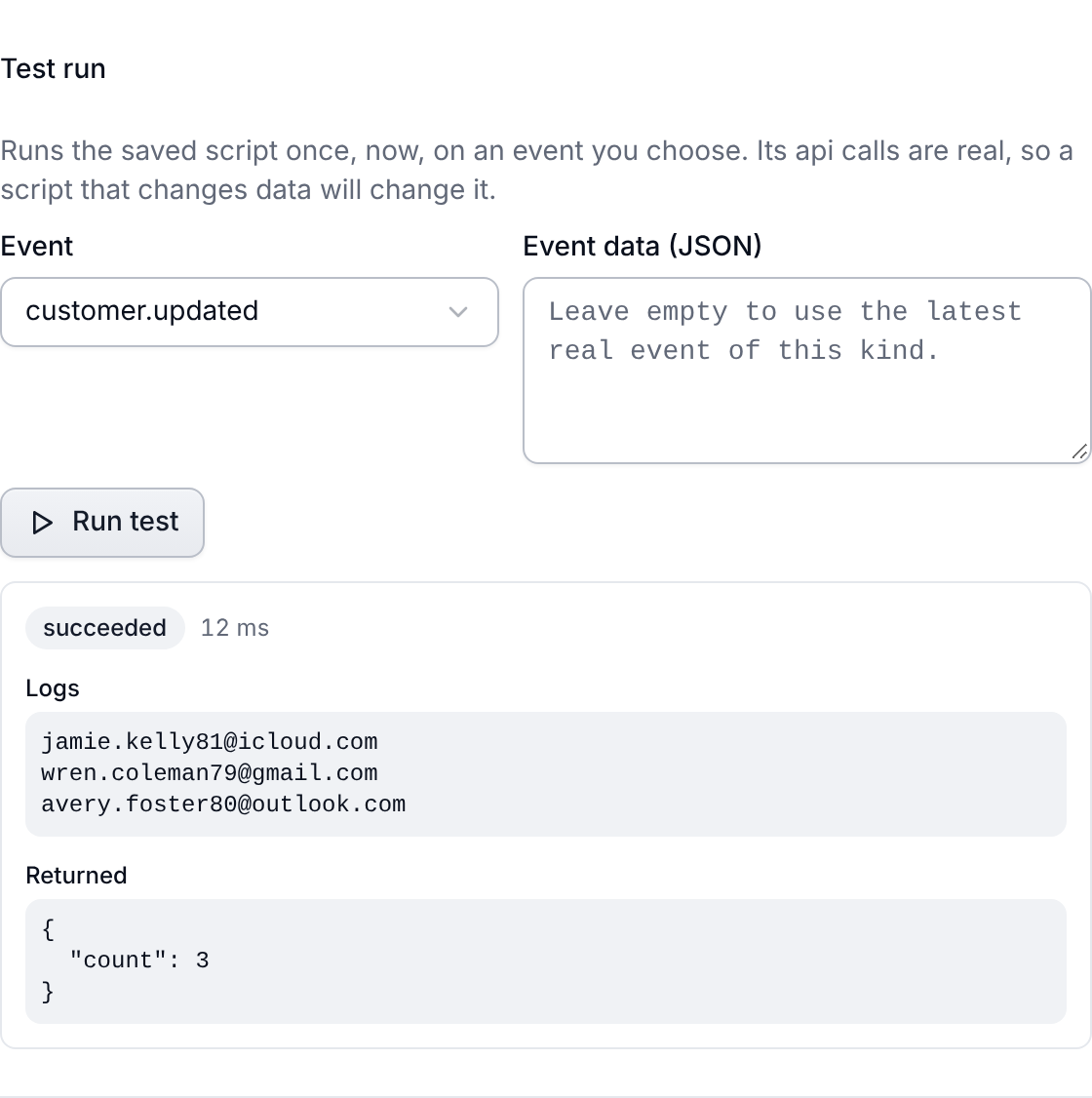
A test is real: if the script tags a customer, the customer is tagged.
Seeing what ran
Recent runs lists every time the automation ran, newest first. Click one to see its logs and result. A run whose script failed is tried again after 1 minute, 5 minutes, 30 minutes, 2 hours and 8 hours, the same as a webhook delivery, and Run again runs it once more straight away with the script as it is now.
What a script can reach
- Your Meisei data, through the same API a developer would use, limited to the Permissions you tick. You can only give an automation permissions you have yourself. The same goes for changing one later. An API key or a connected app can edit, test or rerun an automation only if it holds every permission the automation holds. Without them it can still turn the automation off or delete it.
- Other services on the internet, such as Slack or your email platform.
- What another app sent, when it runs on an incoming request. See Connecting other apps.
- Secrets, the values you saved under Secrets. Once saved they are never shown again.
Changes an automation makes trigger webhooks and other automations as usual, but never the
automation that made them, so a script that updates a customer on customer.updated does
not run forever.
On an updated event, event.previousAttributes holds the fields that changed, at their
old values, the same as a webhook delivery's
(What changed in an update).
For the script format, the meisei client and every event, see the
automations API reference and the events list.
Limits
Each run has 30 seconds, a small budget of processing time, 50 requests to other services and 1,000 calls to Meisei. If a script needs more, ask us and we can raise these for your organization.
Your organization can start up to 1,000,000 runs a month (10,000 during a free trial, more on Unlimited). Test runs, retries and reruns don't count. Past the limit, runs are skipped until the month resets, and Settings → Billing shows how many were skipped. Everyone in the organization gets an email at 80 percent. Your plan also sets how many automations you can have; see Every limit by plan.
If something isn't working
- Nothing runs: check the automation is turned on and ticks the event you expect, and that Settings → Billing doesn't show automation runs as skipped this month.
- A run says it is missing a permission: tick that permission under Permissions and save.
- The script was stopped: it ran past its time. Split the work, or page through a long list rather than loading it all at once.
Next steps
- Connecting other apps, to run an automation on another app's webhooks
- Webhooks, for sending events to a server of your own
- Custom loyalty events, which the birthday template sends
- Rules, to reward the tag or event an automation sets