
MCP server
Meisei speaks MCP, so you can point Claude, ChatGPT or any other MCP client at your own store and ask it questions in plain language:
- Which products got 1-star reviews this week?
- How many loyalty members are close to the next tier?
- What is my average rating doing month over month?
There are two ways to connect. Both reach the same server and the same tools.
Connecting from a chat app
This is the one to use if your client has a "connectors", "integrations" or "custom MCP server" screen. There is nothing to install.
Add a connector with this URL:
Your client will send you to Meisei to sign in and show you what it is asking for. That screen lists every group of data the connection will be able to reach, and says when something can change your data rather than only read it. If you belong to more than one organization, pick the one you want on the same screen. The connection is locked to that organization and can never reach another.
There is no screen in Meisei for disconnecting it yet. Remove the connector in your client, and contact us if you need its access cut off on Meisei's side too. A connection also ends on its own when the person who made it leaves the organization.
Connecting from a local tool
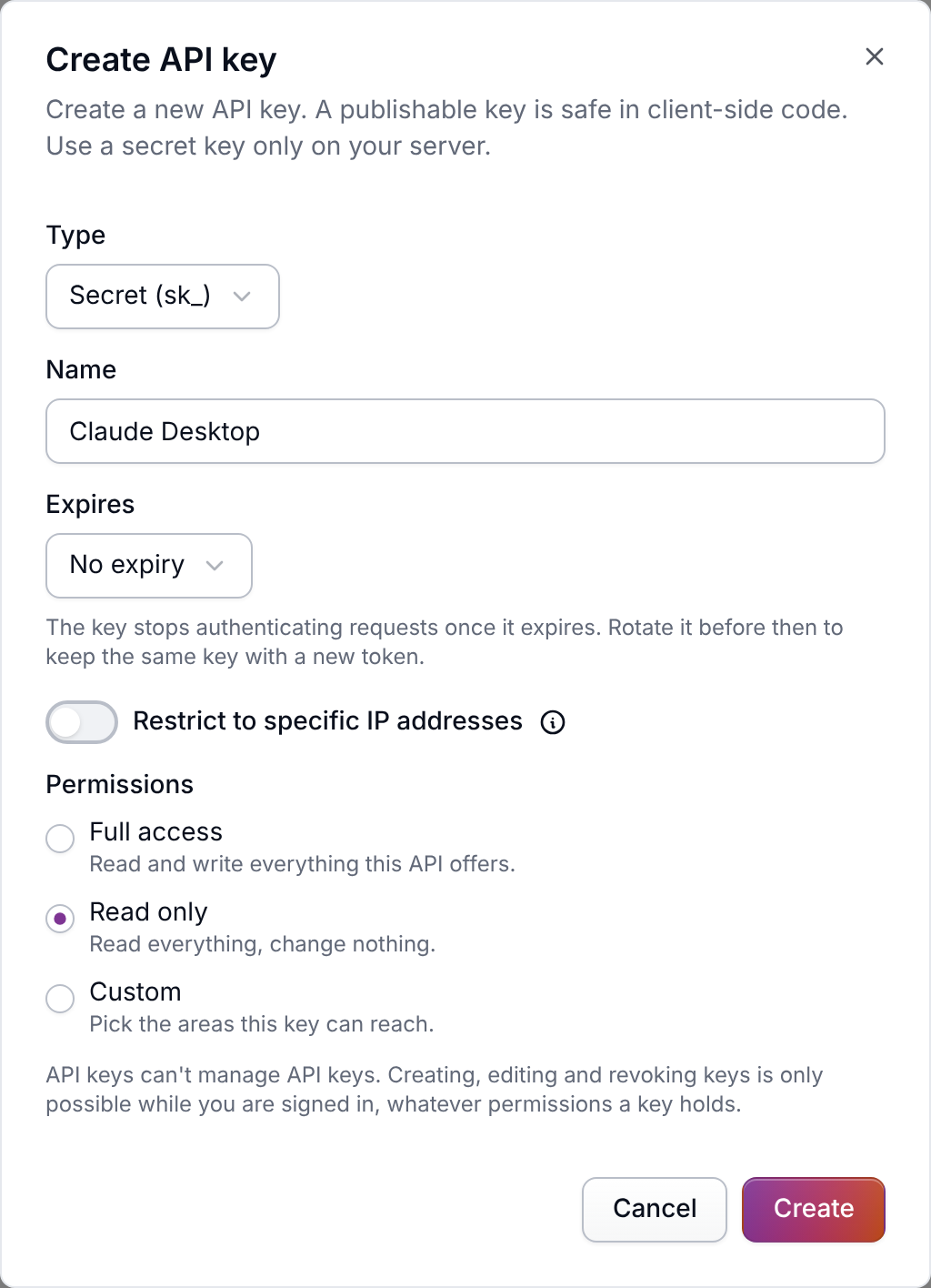
Editors and command-line assistants usually want a process to run instead of a URL. Those take a secret key rather than a browser sign-in, so they also need your store's own address:
Create the key under Settings → API keys, and give it the narrowest permissions that answer the questions you plan to ask (Read only is a good start). The server can never do more than the key allows.
MEISEI_API_URL is your store's own address with /api on the end:
https://<address>.meisei.app/api, where <address> is the handle under Address on
Settings → Organization. It's also the address in
your browser while you're signed in to the dashboard. There is
no default, and the server says so and stops if you leave it out. The connector URL above needs no
address, because signing in picks the store.
What it can do
The server has a small set of tools rather than one per endpoint, which no assistant can use well:
It comes with two prompts to start from: Summarize this week's reviews and Loyalty program health check.
Charts, reviews and members in the chat
Some chat apps can show interactive views from a connection as well as text. In those, ask to see something and Meisei draws it:
- A chart. "Show me reviews per week this quarter as a chart." You can switch between the chart types that suit the numbers, or see them as a table.
- Reviews. "Show me this week's pending reviews." Each one appears as a card with its stars, text, photos and any reply.
- A loyalty member. "Show me Ada's loyalty account." You see their balance, their tier and how far they are from the next one, and their recent activity and rewards.
When writes are turned on for the connection, the review cards get Publish, Take down and Reply buttons, and the member view gets Adjust points and Issue a reward. They make the same changes the assistant could make, so your audit log records them the same way, and the assistant is told what you did. On a read-only connection the views show everything but have no buttons.
In a chat app that can't show views, the same requests still work: the assistant gets the same information as text.
Reading and writing
A connection is read-only by default. Nothing it does can change your store unless writes have been turned on for it. Until then, it isn't even told the write tools exist.
With writes enabled, a connection can do four things: reply to a review, publish or unpublish a review, adjust a member's points, and issue a reward to a member. It can't delete, bulk edit or import.
Your audit log records every change an assistant makes against the connection that made it, so you can see what changed and which application changed it.
Limits
Responses are kept small: pages default to 25 records and long text is shortened, because a large response is slower for an assistant to work through. Your assistant can ask for the full version when it needs it.
MCP requests draw on their own rate limit, separate from the one your other integrations use, so an assistant exploring your store cannot slow down anything else you have running. See Rate limits.