
Email templates
Change the wording and look of the emails Meisei sends your customers on your behalf. The review request and the layout every email shares are edited here. An automation that sends email, such as the loyalty member emails, keeps its emails on its own page, sent inside the layout you set here.
Every email is two parts. A layout holds what all your emails share: your logo, colors, footer and unsubscribe link. Each email template holds only what's particular to that email, like the review stars or the reward code, and is sent inside a layout. Change the layout once and every email picks it up.
The emails you can edit
Your store starts with two layouts and a review request template, already branded with your store's name and colors. Edit them to change what goes out. If you delete every review survey template, Meisei sends its built-in version instead. The loyalty emails are edited on the Loyalty member emails automation. See Loyalty emails.
Edit a template
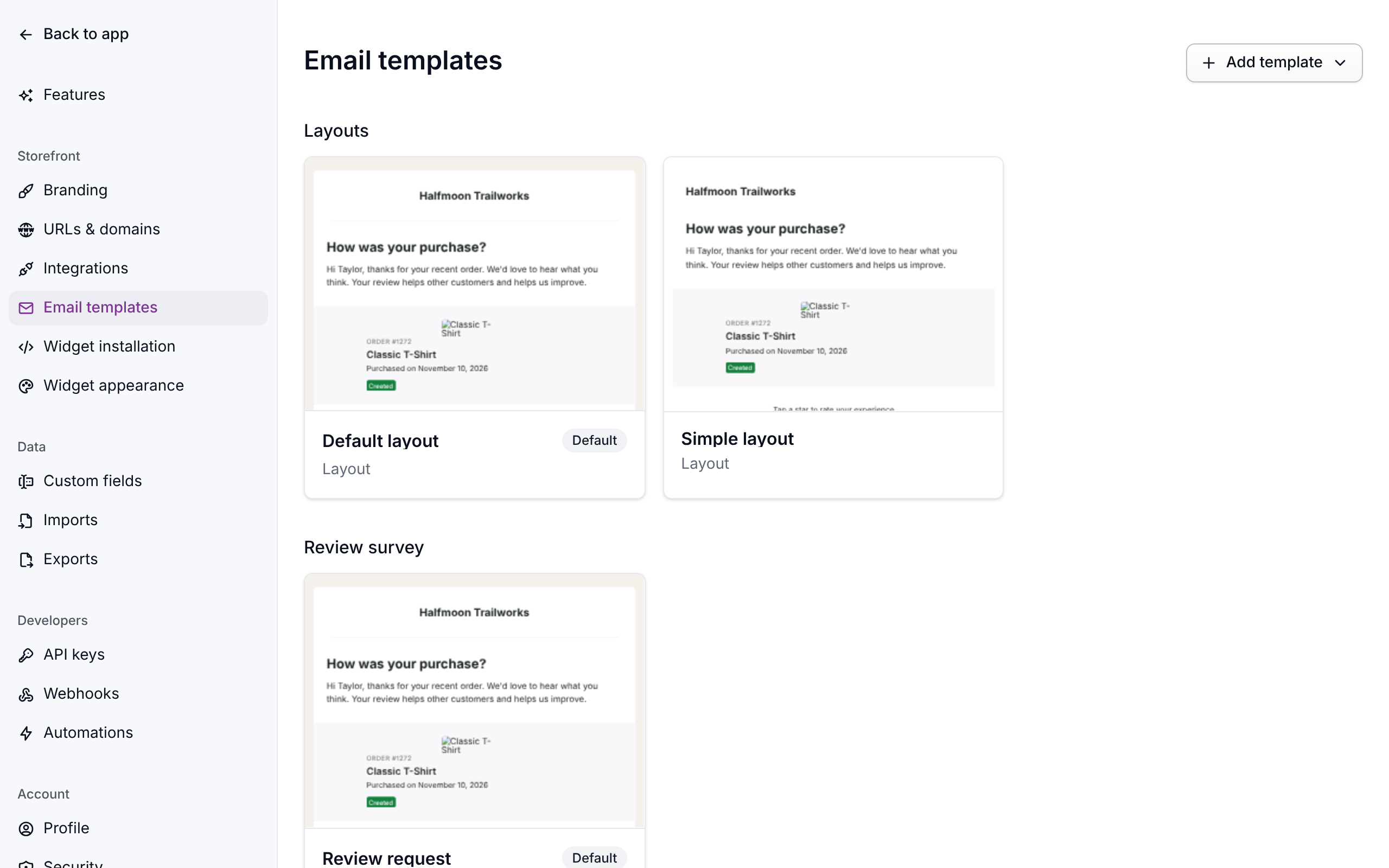
- Open Settings → Email templates. Each card previews what that email currently sends.
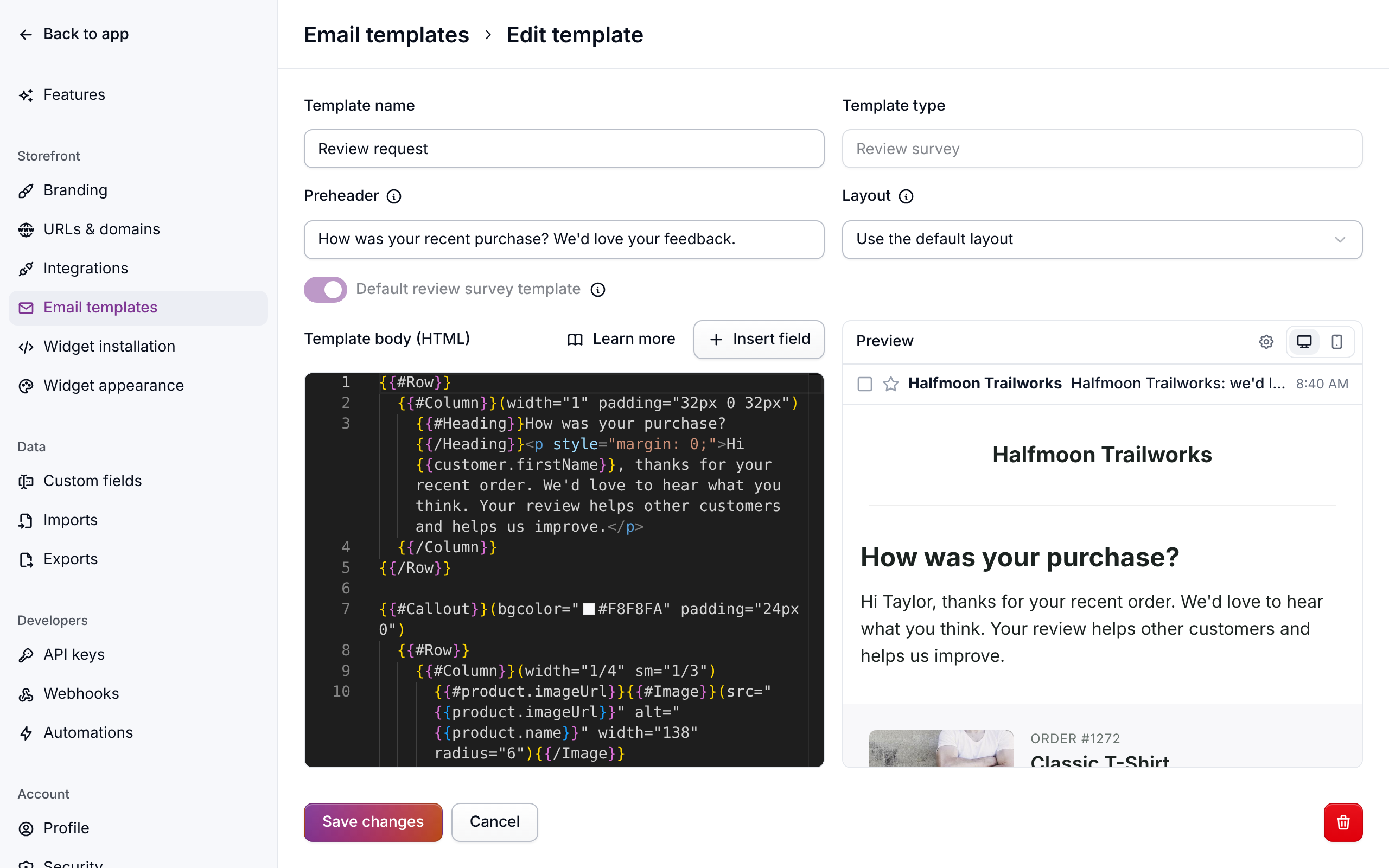
- Open the template and change the wording. Customer names, order numbers, points balances and the like are filled in when the email is sent. See Email template fields for the placeholders you can use.
- Check the Preview beside the editor, with the inbox line on top and a phone size from the buttons on its right. Use the cog beside them to change the sample customer's name and email, or enter a real order number to preview with that order.
- Save.
To have the wording or the look changed for you, choose Ask the assistant above the editor. The assistant opens with this template mentioned and the start of a request typed. Finish it with what you want, such as "the tone is friendlier and the button says Leave a review". The assistant shows you a preview of the new email and asks you to approve the change. Once you approve it, the editor and the preview here show the new version. Anything you'd typed in the editor and not saved is replaced, so save first.
Change the layout
Open the template under Layouts on
Settings → Email templates. It's a
whole email with one gap, {{{email.content}}}, where each email's own content goes. Keep
that gap, and keep the unsubscribe link in the footer. The preview shows the layout around a
review request so you can see how it frames a real email.
Your store comes with two layouts. Default layout puts each email on a card over a tinted background, with your logo centered above it. Simple layout drops the background and the card, so the email reads like a letter: your logo at the top, then the content, then the footer. To send every email in the simple one, open it, turn on Default layout template, and save.
If one email needs a different look, pick another layout from the Layout menu on that email's template, or add your own from Add template → Layout. Anything left on Use the default layout follows whichever layout is your default, while picking a layout by name keeps that one even after you change the default.
Both layouts fit themselves to a phone, including in email apps that ignore styling, so there's nothing to set for small screens.
Choose the default template
Each type has one default, marked Default on its card. It's the one Meisei uses unless something picks another, such as every review request.
To change it, open another template of that type, turn on its default switch (Default review survey template on a review request), and save. The old default stops being one. If you delete a default, the oldest template left of that type takes over.
Turn an email on or off
Each email has its own switch:
- Review survey: when it goes out, or whether Meisei sends it at all, is set under Settings → Features → Reviews. See Collecting reviews.
- Loyalty emails: on the Loyalty member emails automation, which you open from Settings → Features → Loyalty. See Loyalty emails.
Keep the unsubscribe link
Every template's footer carries a link where the customer can stop receiving marketing email, and opt back in later. Leave it in place. A customer who unsubscribes is skipped by every later marketing send.
Emails Meisei sends you
Separate from all of this are the emails about your account rather than on your store's behalf: the sign-in link, email verification, invitations, billing notices, review alerts and the daily digest. They carry Meisei's branding, can't be edited, and have no unsubscribe link because they're about your account. Each one says at the foot why it reached you. Review alerts and the daily digest can be turned off under Settings → Features → Reviews.
If something isn't working
- My edits aren't going out. Check you edited the default template of that type, and that the email's switch is on.
- My layout changes don't show in one email. That template picks a layout of its own. Set its Layout back to Use the default layout.
- An older template ignores the layout. A template that starts with
{{#Html}}is a whole email on its own and is sent without a layout. Copy its content rows into a new template to have it use one. - A customer says they didn't get a loyalty email. They may have unsubscribed, or the email is switched off on the automation. See Loyalty emails.
Next steps
- Email template fields for every placeholder.
- Collecting reviews.
- Loyalty emails.