
Connecting other apps to an automation
An automation can run whenever another app tells it something happened, such as a new WooCommerce order or a Stripe payment, so connecting that app needs no server of your own.
You give the other app an address, its incoming URL. The app sends its webhooks there, and each one runs the automation's script with what the app sent.
Before you start:
- Anyone with the address can start a run, so keep it the way you would a password. If it leaks, make a new one and the old one stops working at once.
- The address is shown once, when you make it. Copy it straight into the other app.
- Each request counts as a run toward your monthly automation runs.
Making the URL
-
Open the automation in Settings → Automations.
-
Under Runs on, tick Incoming request and click Save.
-
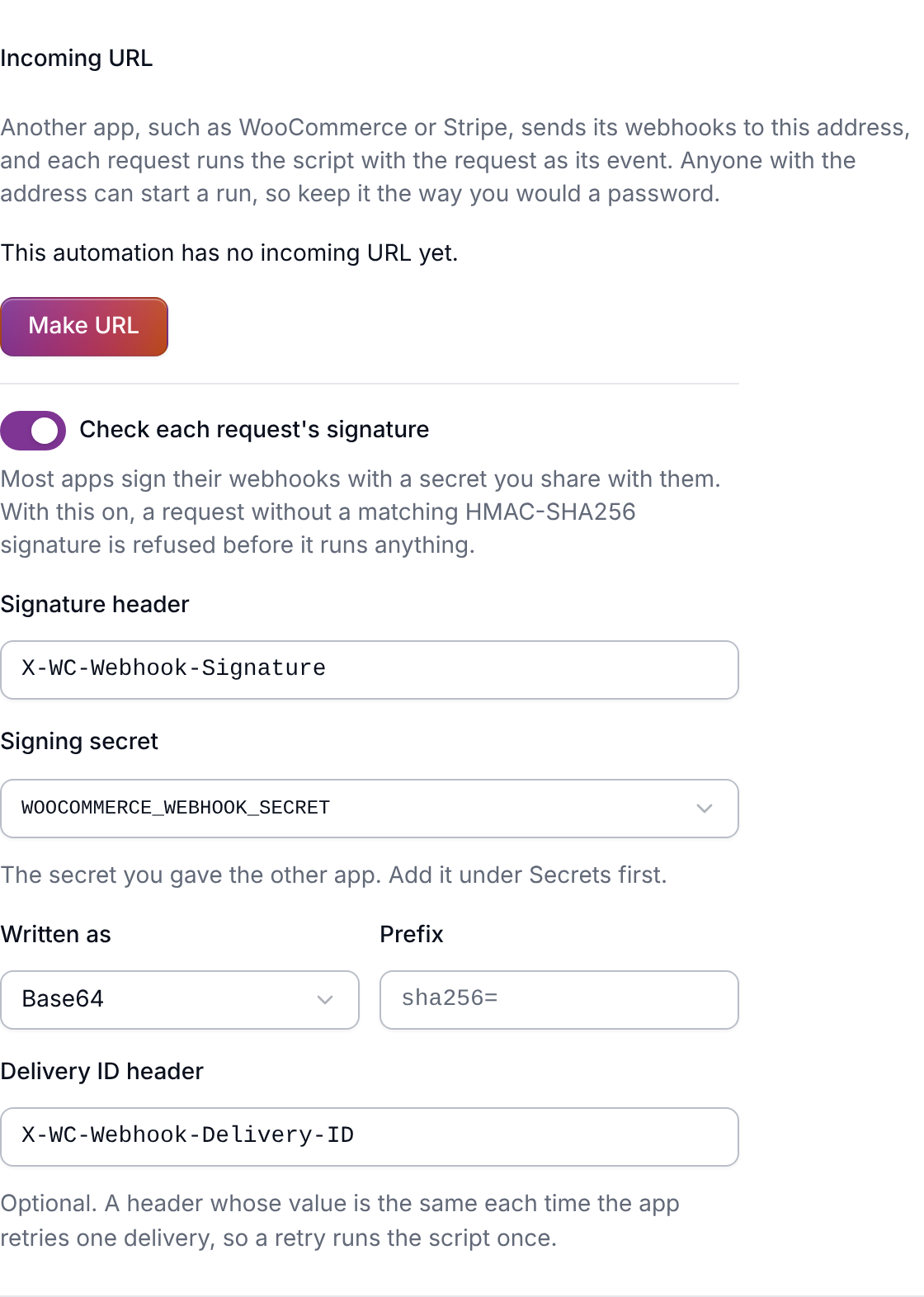
Under Incoming URL, click Make URL and copy the address.
-
Paste it into the other app's webhook settings, often called the delivery or endpoint URL.
The Import WooCommerce orders template already runs on incoming requests and checks WooCommerce's signature, so you only make the URL. Its script explains the two WooCommerce webhooks to add.
Checking the signature
Most apps sign each webhook with a secret you share with them, so a request that didn't come from the app is refused before it runs anything. We recommend turning this on whenever the app offers it.
- Add the secret the app gives you, or the one you give the app, under Secrets.
- Under Incoming URL, turn on Check each request's signature.
- Fill in the details from the app's webhook documentation: the Signature header it
sends, the Signing secret you just added, whether the signature is Written as
base64 or hex, and any Prefix before it, such as
sha256=. - Click Save.
If the app retries a webhook it thinks failed, put the header that names each delivery in Delivery ID header, so a retry runs the script once.
Seeing what arrived
Each request shows under Recent runs like any other run. Under Test run, choose
inbound.received and leave the data empty to run the script again on the latest request,
which is the easiest way to work on a script against real data.
If something isn't working
Next steps
- Automations, for the templates and what a script can do
- The automations API reference, for the event a script receives