
Finding things in a list
Every list screen in Meisei, such as Reviews, Orders and Customers, has the same search box, filter bar, quick filters and sortable columns.
Search
Type into the search box above the list. It looks in a customer's email, name or phone; an order's number or notes; a review's title, body, customer or product; and the text custom fields on customers, products and orders. A review request matches on its order number and customer, and loyalty activity on the member.
You can type more than one word. Every word has to match somewhere on the row, in any order, so "ada lovelace" finds the customer whose first and last names are stored separately, and "classic cotton" finds the product with "Classic" in its title and "cotton" in its description. Words match from the start, so "love" finds Lovelace. Capital letters and accents are ignored: "jose" finds José.
Search and filters combine, so you can search for a customer and narrow to one date range at the same time.
Filter
- Click Filter beside the search box and choose a field, such as Date, Status or Rating. Text the search box already covers, such as a customer's email or a product's title, has no field here. Search for it instead.
- Pick a comparison and a value. Add as many filters as you need. A row only shows when it matches all of them.
- To keep a set of filters, open the
...at the end of the quick filters and choose Save current filter. It joins the quick filters above the list on that screen, so anyone on your team can apply it in one click.
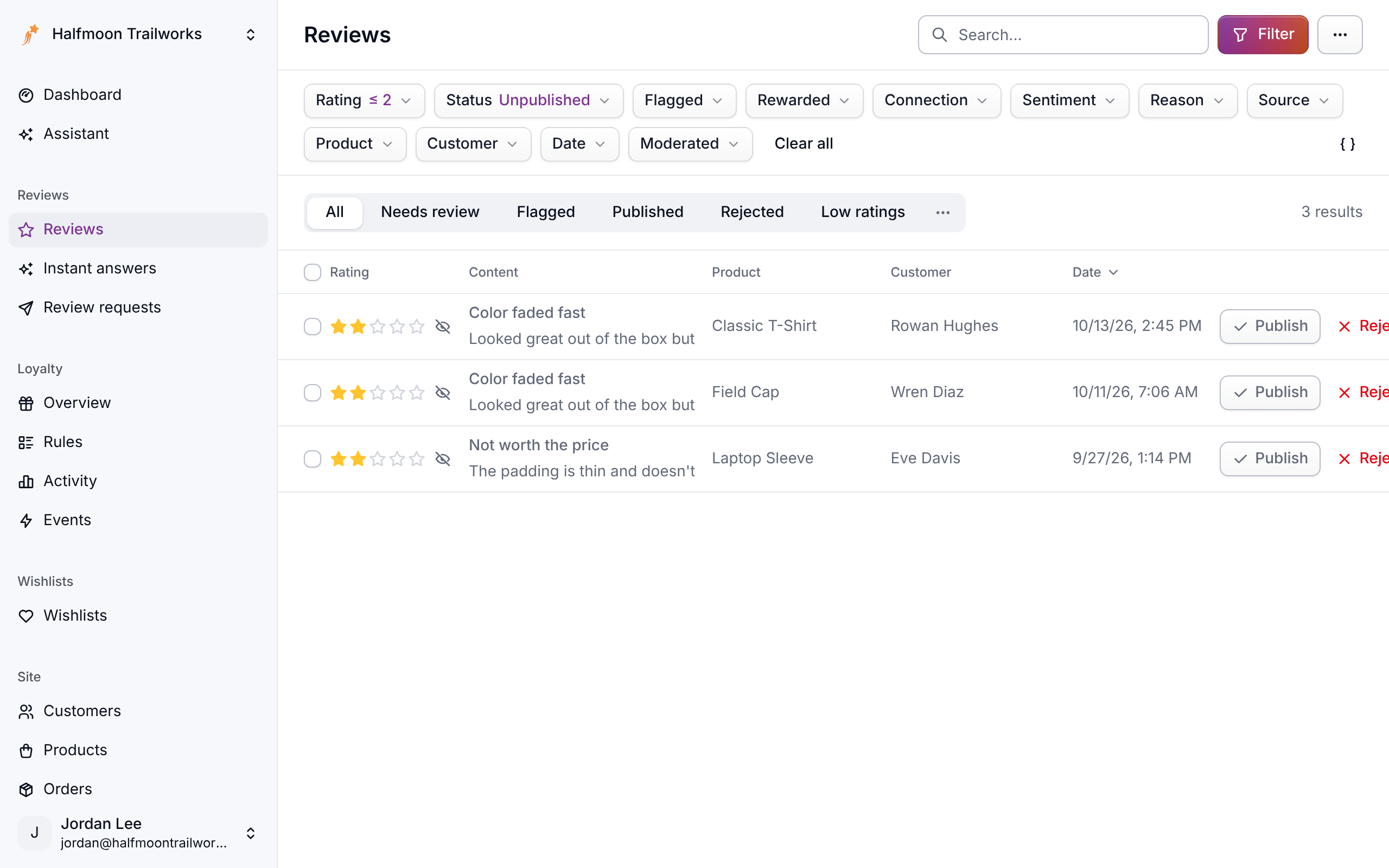
The count beside the quick filters reads "50+ results" until every matching row has been loaded.
Sort
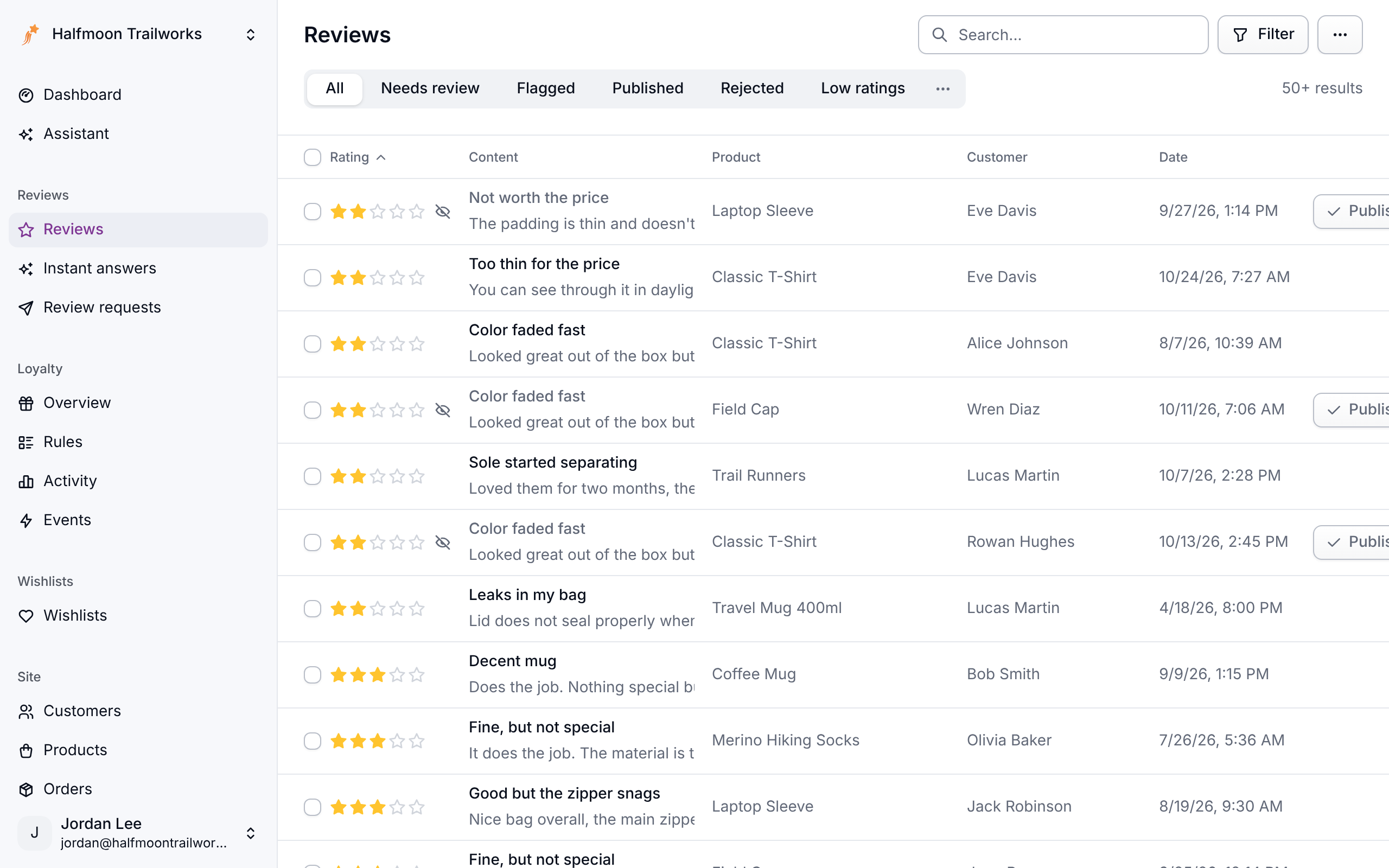
Click a column header to sort by it, and click again to reverse. A chevron marks the column in use. Every list starts on its Date column, newest first. Columns you can sort by include rating on reviews, total and order number on orders, the Activity column on loyalty activity, name on wishlists, and wishlist count on products. Columns that are worked out for each row, such as an order's status or a customer's review count, are not sortable.
Your sort and filters are saved in the page address, so you can bookmark a filtered list or send it to a colleague.
Load more
Lists show 50 rows at a time. Load more under the table adds the next 50 below what is already there.
If something isn't working
- "Couldn't load this list" where the table should be: a filter is asking for something the list doesn't understand, usually from an old bookmark. Choose Clear filters or Try again.
- Nothing matches: check for a typo and clear any filters still applied. Search matches whole words from the start, so a fragment from the middle of one ("ovelace") will not find it. Phone numbers and order numbers are the exception: any part of those matches.
- Too many words: every word you type narrows the list further, because a row has to match all of them. Drop a word to widen the search.
Next steps
- Moderating reviews
- Analytics for counts and trends rather than rows.
- Developers: the same filters, search and sort are available on every list endpoint. See Filtering, search and sort.
For developers
The filter syntax for the API is in Filtering, search and sort.