
Use your own domain
Send your shopper emails from your own address, and put the pages Meisei hosts for your shoppers on your own web address.
Two things change once a domain of yours is set up:
- Emails come from you. Review requests and loyalty emails arrive from
reviews@yourstore.cominstead ofyourstore-reviews@meisei.app. - Pages live on your address. The review form, shared wishlists and the unsubscribe page
sit at
reviews.yourstore.cominstead ofyourstore.meisei.app.
Until then, Meisei uses those two defaults, and the page shows you exactly which ones.
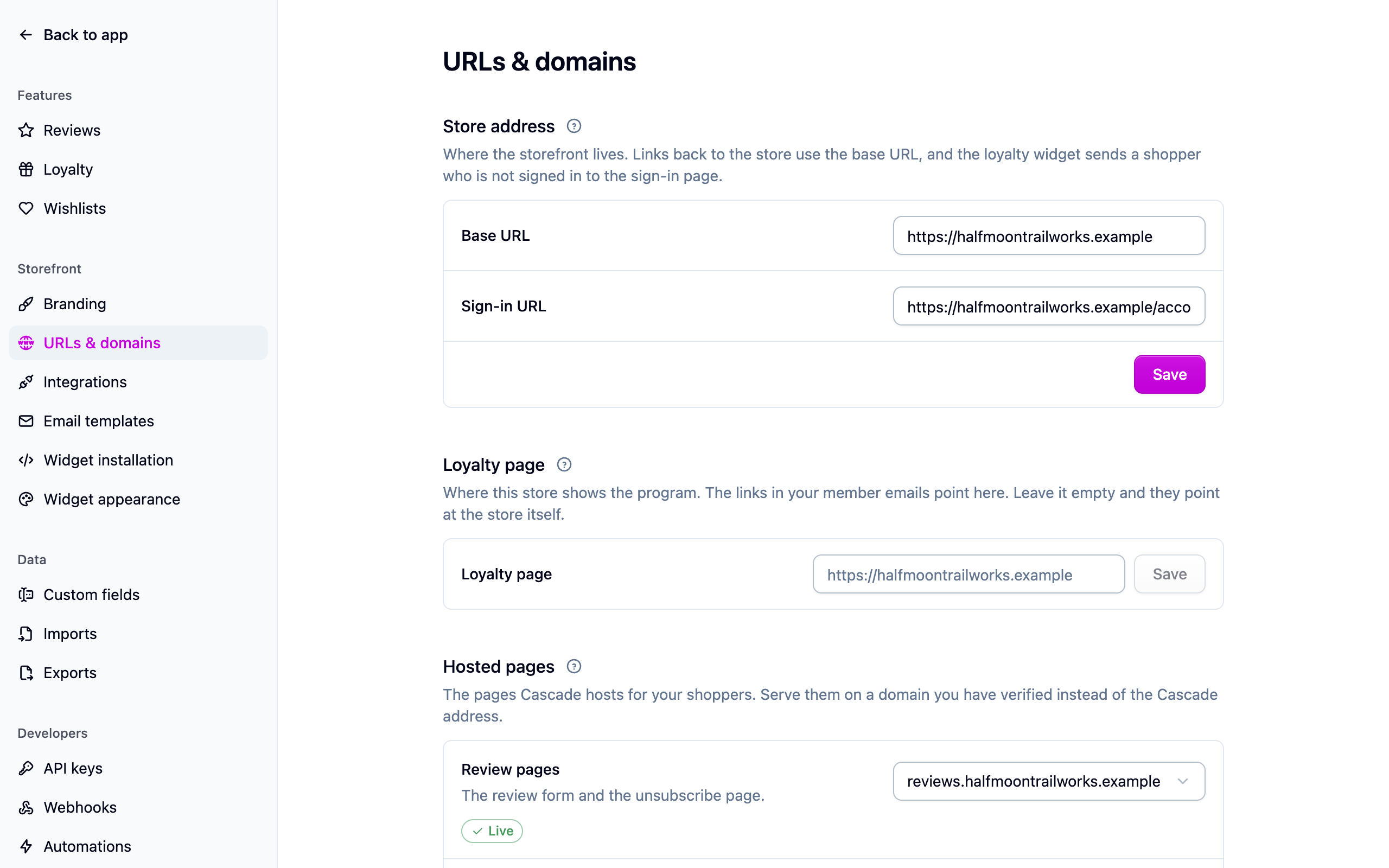
Everything lives on one page, Settings → URLs & domains. The sections at the top are about each store: its address, its loyalty page, which domain its hosted pages and emails use. The Domains section at the foot is about proving a domain is yours. If you run more than one store, tabs at the top switch between them.
Each step asks you to add a record at your DNS host, which is wherever your domain's records are managed: your registrar, Cloudflare, or whoever hosts your site. If someone else looks after that for you, send them the records from the domain's page.
Store address
Base URL is your storefront's home page. Links back to your store use it, and it is where the loyalty emails send members when you have not set a loyalty page.
Sign-in URL is your storefront's sign-in page. The loyalty widget shows a shopper who is not signed in a Sign in to join button that opens it. Leave it empty and the widget shows a plain hint instead.
Add your domain
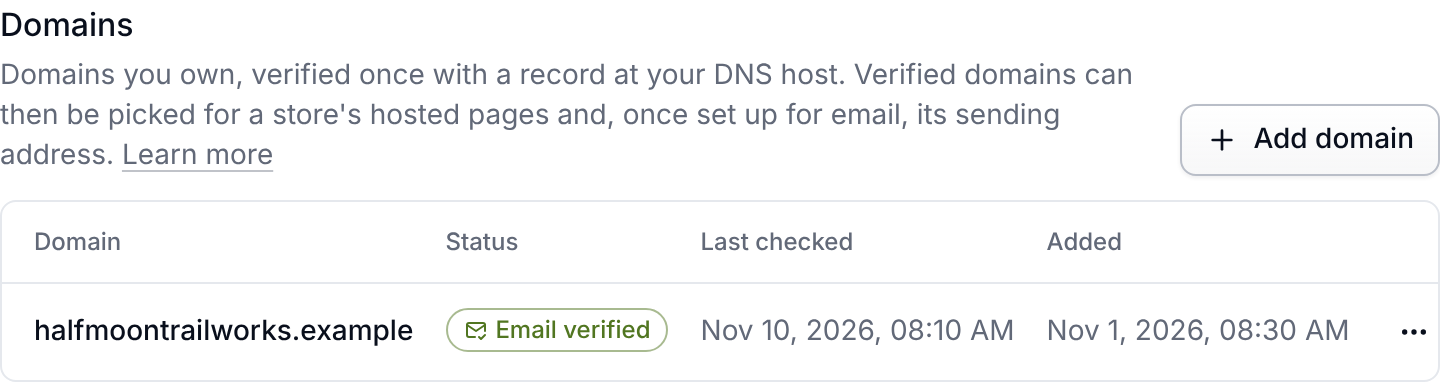
- Scroll to Domains and press Add domain. Type the name on its own, with no
https://and no path. Add the exact name you want to use:yourstore.comif your pages should sit at the top of it,reviews.yourstore.comif they should sit under it. - Copy the record Meisei shows you (a TXT record with a name and a value) and add it at your DNS host, exactly as given. It only proves the domain is yours.
- Leave the page. Meisei looks again every hour, and Check now asks straight away if you would rather not wait.
New records usually show up within an hour, and can take up to a day. Until the record is found, the domain reads Unverified and cannot be picked for anything.
Set it up for email
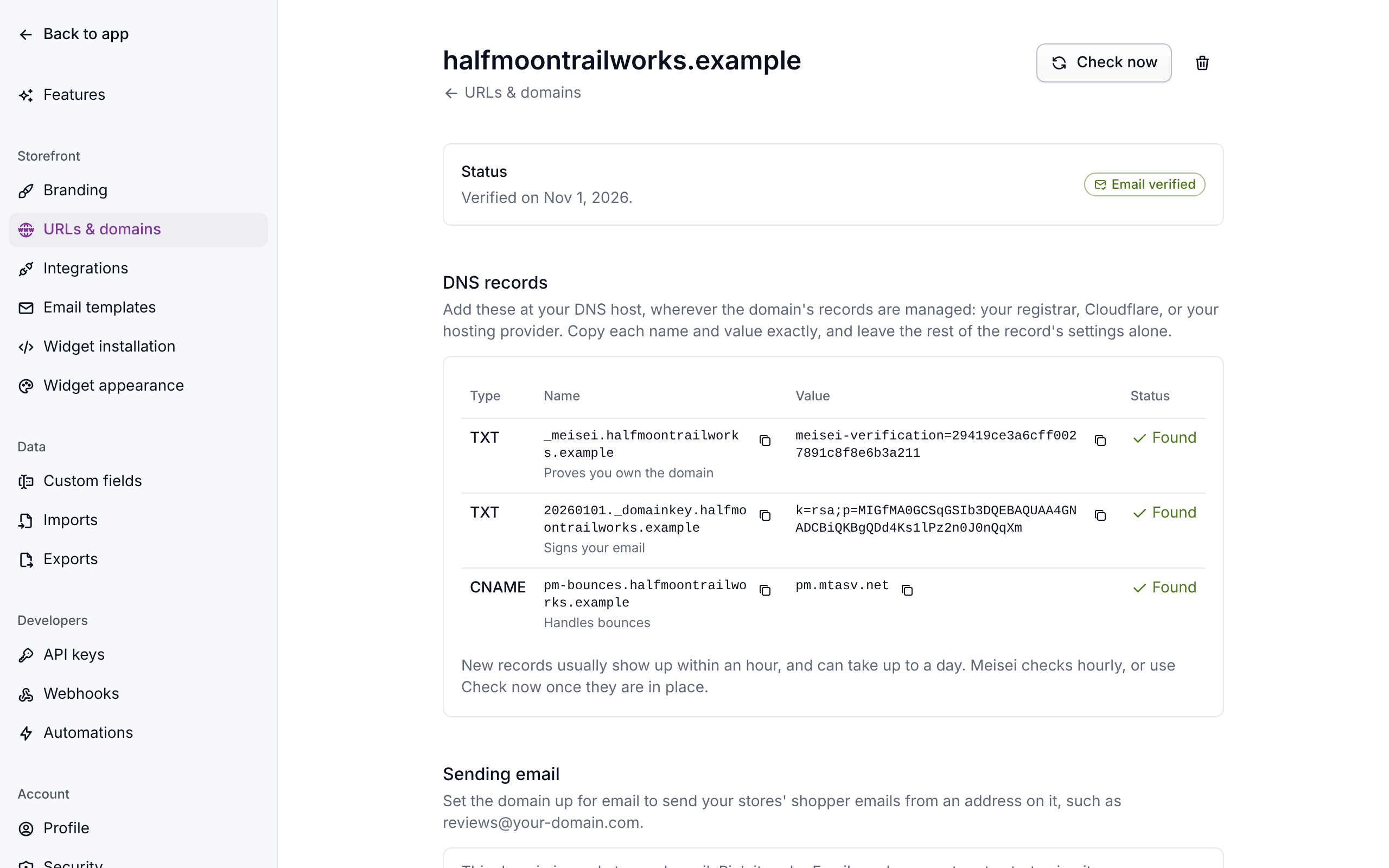
- Open the domain and press Set up email. A few more records appear: one signs your email so it isn't treated as spam, and another handles bounced messages so mailbox providers know Meisei may send for you. Each row says what it is for.
- Add them all at your DNS host, then press Check now. The domain reads Email
verified once your email provider accepts them. If one is an MX record and your
DNS host asks for its priority separately, it is the
10at the start of the value. - Back on URLs & domains, under
Email sender, choose the domain. An Address field appears: type the part before
the
@, such asreviewsorhello, and Meisei shows you the full address as you type it. Reply-to is where replies go, if that should be a different address such as your support inbox. It works with the Meisei address too, which is worth setting since nobody reads replies toyourstore-reviews@meisei.app.
Put your pages on your own address
- Under Hosted pages, each kind of page shows the Meisei address it is on now,
yourstore.meisei.app. Pick a verified domain instead for Review pages (the review form and the unsubscribe page) and for Wishlist pages (shared wishlists). Pick the same domain for both if one address should serve everything. - The pick reads Waiting for DNS until the records for it are in place. Open the domain and add each record shown under Hosted pages at your DNS host: a CNAME that points the address at Meisei, and sometimes a TXT record that gets its certificate issued. The list shows exactly what to add, and each row says what it is for.
- A certificate is issued a few minutes after the records are found, the pick reads Live, and your links start using it from then on. Check on the domain's page looks again straight away.
If something isn't working
- The record isn't found. Many DNS hosts add your domain to whatever you type in the name
field, so
_meisei.yourstore.combecomes_meisei.yourstore.com.yourstore.com. Paste only the part in front of your domain if your host works that way, and check there is no stray space at either end of the value. - Emails still come from Meisei. The domain has to read Email verified, and the store needs an address under Email sender. Either one missing means Meisei keeps sending from its own address, so your email still goes out.
- Links still use the Meisei address. A domain is only used for pages once its certificate has been issued and the pick reads Live. Open the domain and press Check to look again.
- Your domain was verified before and now asks for records again. Meisei moved to a new email provider, which has to check the domain for itself. Add the records the domain's page now shows. Until it reads Email verified again, your store sends from the Meisei address, so nothing is lost in the meantime.
- The domain you want isn't in the list. Only verified domains can be picked. Scroll to Domains and check its status.
- You removed a domain. Its hosted pages go back to
yourstore.meisei.appand your store goes back to sending fromyourstore-reviews@meisei.app. Links you already shared on it stop working, so keep a domain in place once you have shared links on it.
When email is paused or limited
A note at the top of URLs & domains tells you when your store's email isn't all going out, and why:
- Your store is new to sending email. For its first four weeks, up to 1,000 review requests and other marketing emails go out a day, doubling each week. The rest wait for the next day, so nothing is dropped. This keeps a new sender from looking like spam.
- Marketing email is paused. Too many of your emails bounced, or were marked as spam, over the last two weeks. Review requests and loyalty reminders are held, while redeemed rewards still go out. Sending resumes on its own as the rate drops. The usual cause is an old customer list, so remove addresses you know are out of date before your next import.
- Email to your customers is paused. The rate went higher still, or our email provider paused your store. Contact support and we'll work through it with you.
The owners of your store also get an email when either pause starts, with the rates behind it and what to do, and another when sending resumes. A pause on our side lifts on its own as the two weeks move on. A pause from our email provider doesn't, so contact support once your list is cleaned up.
Email to you and your team, such as review alerts and sign-in links, is never held. An address that bounces for good or marks your email as spam is never emailed by your store again, and Meisei never sends an imported customer a review request as their first email from you.
Next steps
- Email templates, to check how your emails read from the new address.
- Running more than one store, to set an address per storefront.
- Collecting reviews, which is what most of these emails are.