
Importing orders
Bring your order history across from another platform so Meisei knows who bought what, can ask the right customers for reviews, and can credit loyalty points for past purchases.
Before you start
Every order attaches to a customer and to the products it contains, so import those first:
- Importing products.
- Your customers, from Customers. Meisei matches each order to a customer by email address.
If you skip this, every order is skipped because it has no customer or product to attach to.
Import your orders
-
Export your orders from your current platform as a CSV file and arrange the columns to match the list under For developers below. Each item in an order is one row, with the order's own details repeated on every row.
-
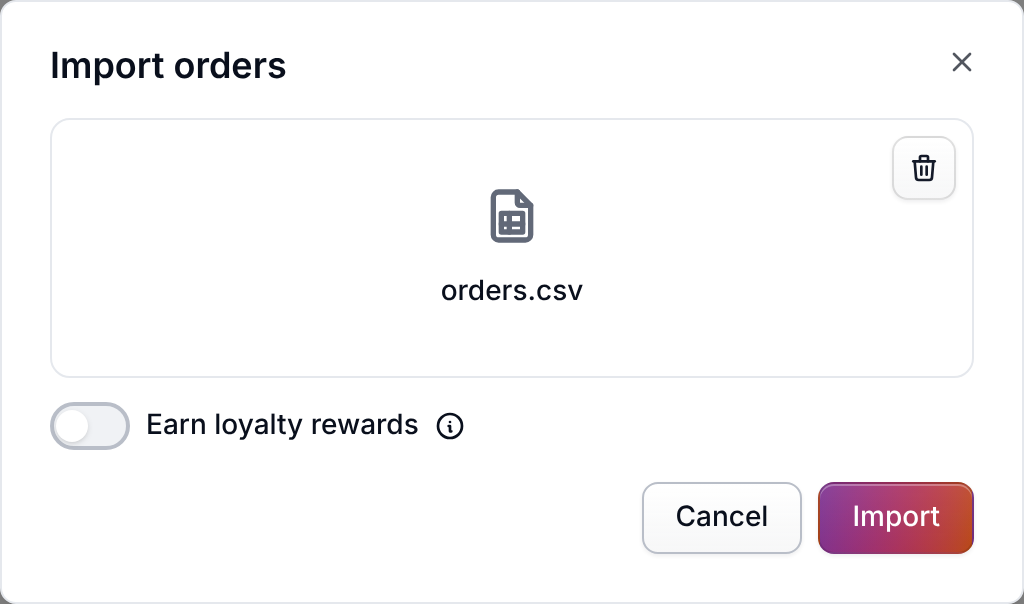
Open Orders, choose Import from the actions menu, and pick your file.
-
Decide about Earn loyalty rewards on the import dialog, which gives imported orders points and rewards. It starts off, so importing history never hands out points by accident. Review requests need no switch. The Send review requests automation asks an imported order only if its day came in the last three days, so recent orders are asked and old history is not. A customer who only reached Meisei through an import, and has never had an email from your store, is skipped, because an old list is the main cause of bounced email.
-
Start the import. It runs in the background, so you can leave the page.
-
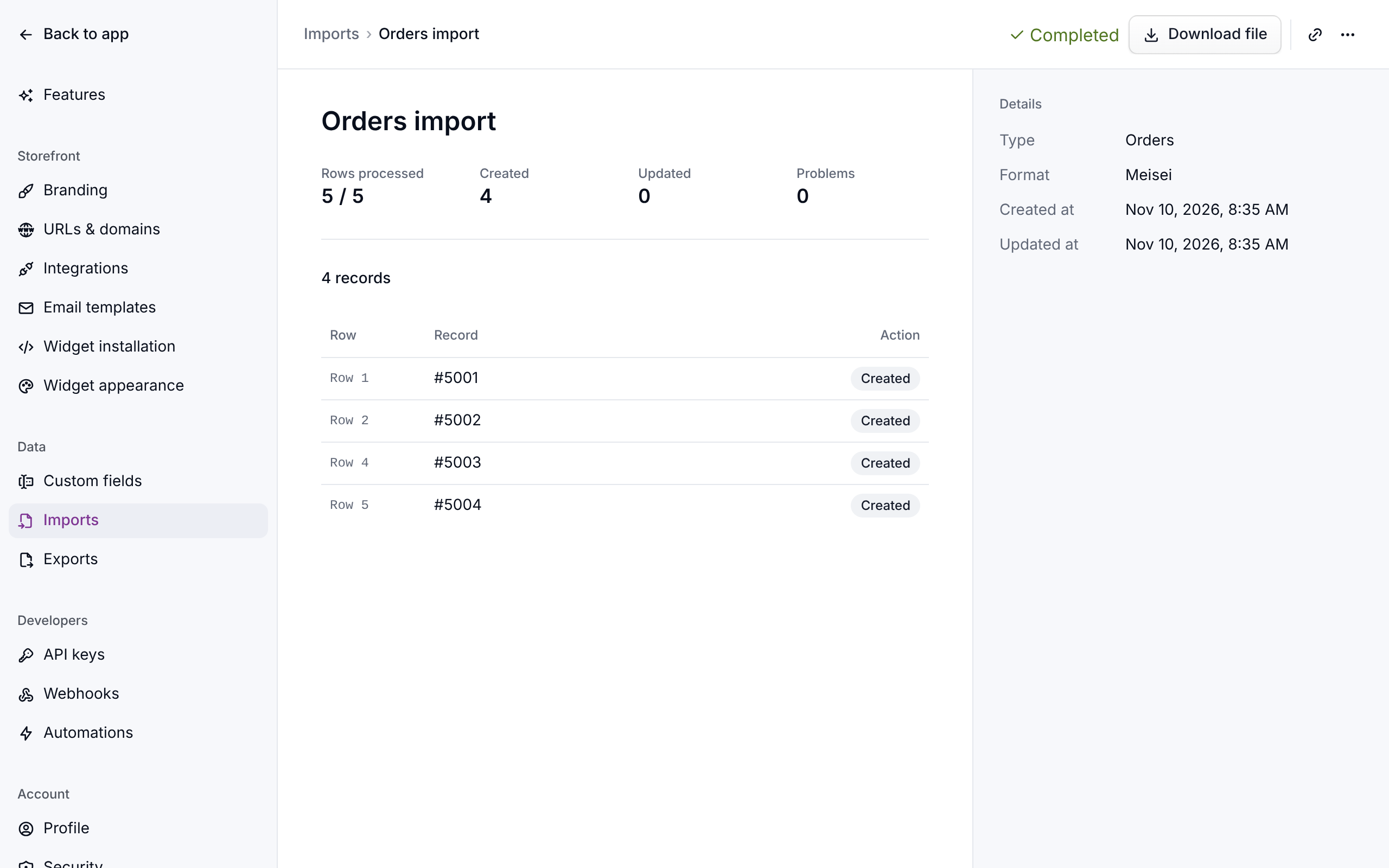
Check Settings → Imports when it finishes. Open the job to see any rows that were skipped, with the row number and the reason.
Good to know
- Include the date each order was placed. Without it, Meisei dates every order on the day you import it, so old orders look new: charts put them all on one day and review requests can go out for them.
- Importing the same file again is safe. Meisei recognizes each order by the order ID from your old platform and updates it in place, replacing its items with the ones in the file, rather than adding a copy.
- One bad item skips the whole order. Meisei won't import an order with only some of its items. Fix the row and import again.
- A bad row never stops the import. The rest of the file is imported.
If something isn't working
See Imports and exports for the messages every import can show.
- Nobody got a review request. The orders were older than the review request window, the Send review requests automation is off (see Settings → Features → Reviews), or the customers were imported and have never had an email from your store. They get review requests from their next order on. See Collecting reviews.
Next steps
- Importing reviews.
- Migrating from another loyalty app to bring points balances across.
- Imports and exports for how every import behaves.
For developers
One row per line item. Rows that share a remoteId (and site, when you fill it) are one
order, wherever they sit in the file. Files in the older format (a full row starts an order, the rows below carry only
their line item) still import: a row with a blank remoteId belongs to the order above it.
Where two rows of one order disagree on an order-level value, the first non-empty value in
the file wins and the ignored row is reported. A blank cell means "not specified" and never
overwrites what another row said. The same import is available as
POST /import-jobs.