
Reviews
This page shows how reviews reach your store, what happens to each one, and the settings that decide it.
Get reviews running in a minute
- Turn on review requests in Settings → Features → Reviews with Send requests automatically. Meisei emails each order for a review. See Collecting reviews.
- Add the star rating and reviews widgets to your storefront. See Storefront widgets, or Widgets in your theme on Shopify.
- Bring your existing reviews across so products don't start at zero stars. See Importing reviews.
Where reviews come from
- Review requests. Meisei emails the customer after their order. Most of your reviews will come from these, and each is marked as a verified buyer because Meisei knows which order it sent the request for. See Collecting reviews.
- Your storefront. The "Write a review" form in the reviews widget. A shopper who is signed in to your store and has an order for the product is marked as a verified buyer. A guest never is, because an email typed into a form proves nothing.
- An import. A spreadsheet from your old reviews app. See Importing reviews.
What happens to a review
- It arrives unpublished and waits in Reviews.
- Content screening runs, if you've turned it on. Anything flagged is held for you and is never published automatically.
- You publish or reject it, or Meisei publishes it for you if you've allowed that.
- Once published, it shows on your storefront, counts toward the product's rating, and can give you star snippets in search results.
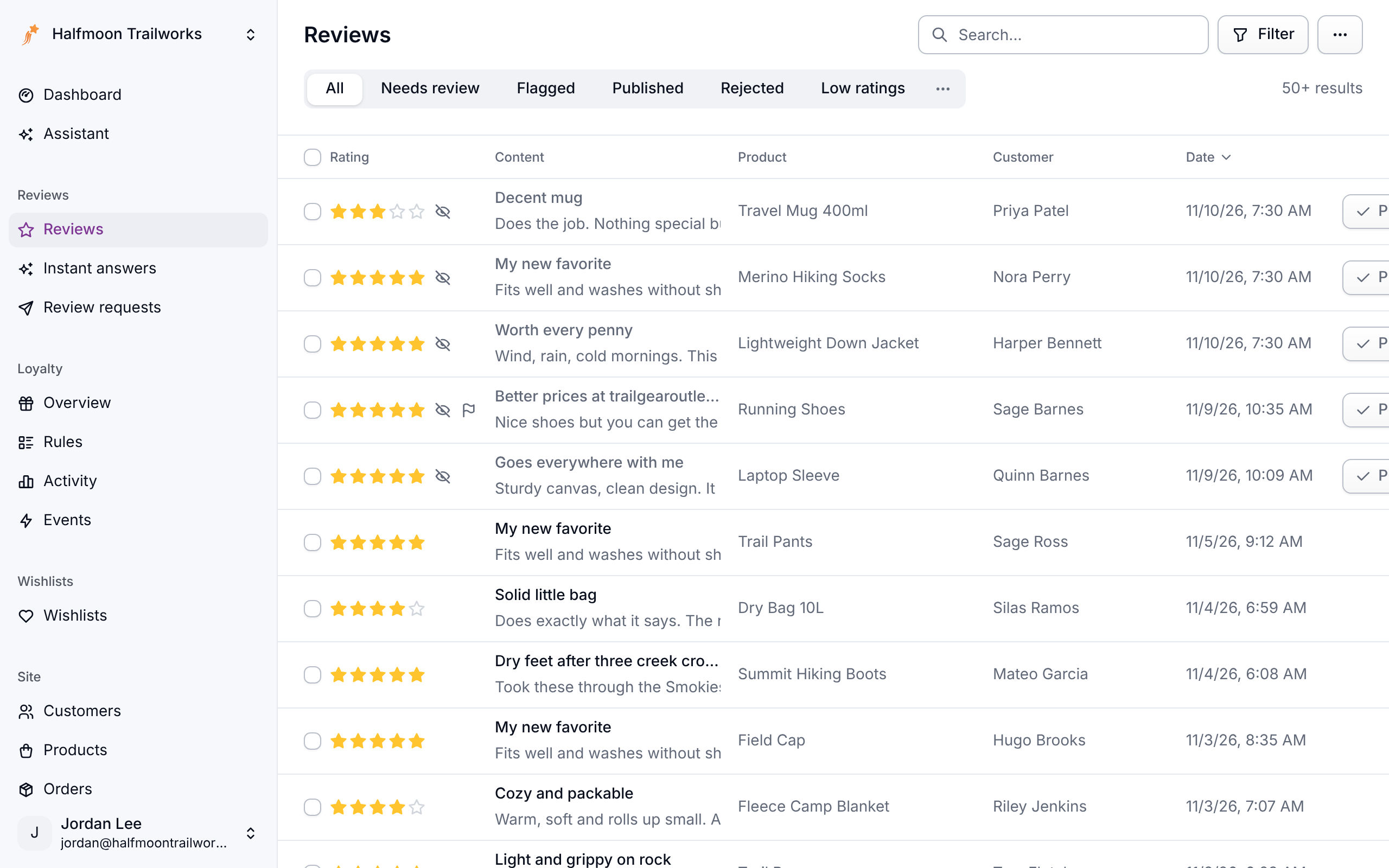
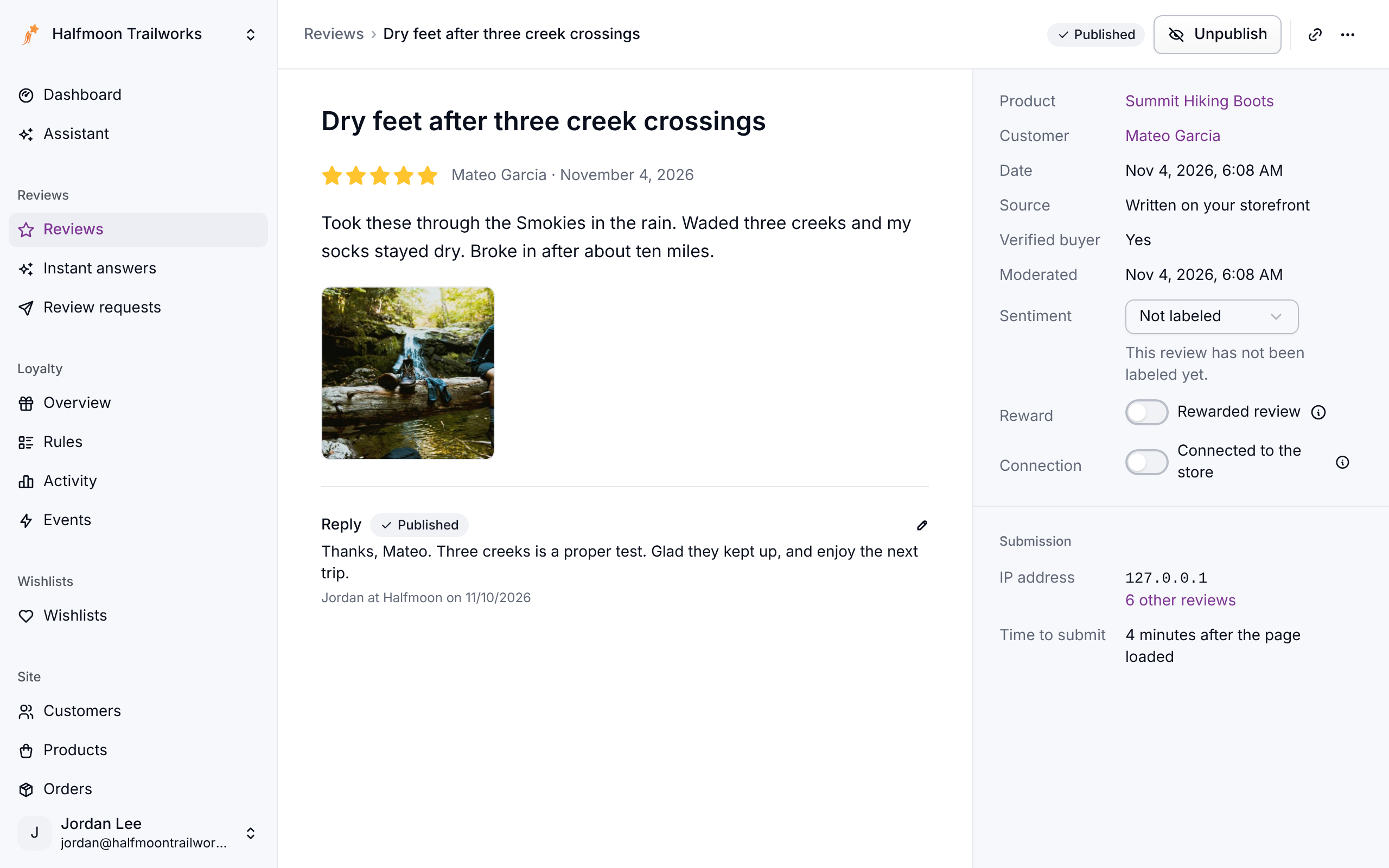
You can reply to, edit, redact or delete a review at any time. See Moderating reviews.
Review questions
Beside the star rating you can ask reviewers a few extra questions, such as "How does it fit?" on a scale from "Runs small" to "Runs large", or a list of options to pick from. Answers are summarized on your storefront. Set them up under Settings → Features → Reviews. See Review questions.
Settings
Everything below is under Settings → Features → Reviews.
Automatically publish new reviews

Off to start, so every review waits for you. Turn it on and every new review goes live the moment it arrives, whatever its star rating. A low rating is never a reason to hold one. A review only waits for you when screening flags what it says or how it was submitted. That keeps your average rating honest, because it counts the critical reviews as well as the good ones. A review with photos or videos is only published automatically when AI review screening is on to check them first.
Only accept storefront reviews from verified buyers

Off to start, so anyone can write a review from your product pages. Turn it on and only a shopper who is signed in and has an order for the product, not canceled, can. Everyone else sees a note in place of the form: a guest is asked to sign in, and a signed-in shopper with no order is told there isn't one. Review requests and imports are unaffected.
Turn it on if fake or unearned reviews are a worry, or if you'd like to tell shoppers that every review written on your storefront comes from a buyer. It needs your storefront to sign shoppers in to the widgets, which the Shopify app does for you; elsewhere, ask your developer.
About our reviews
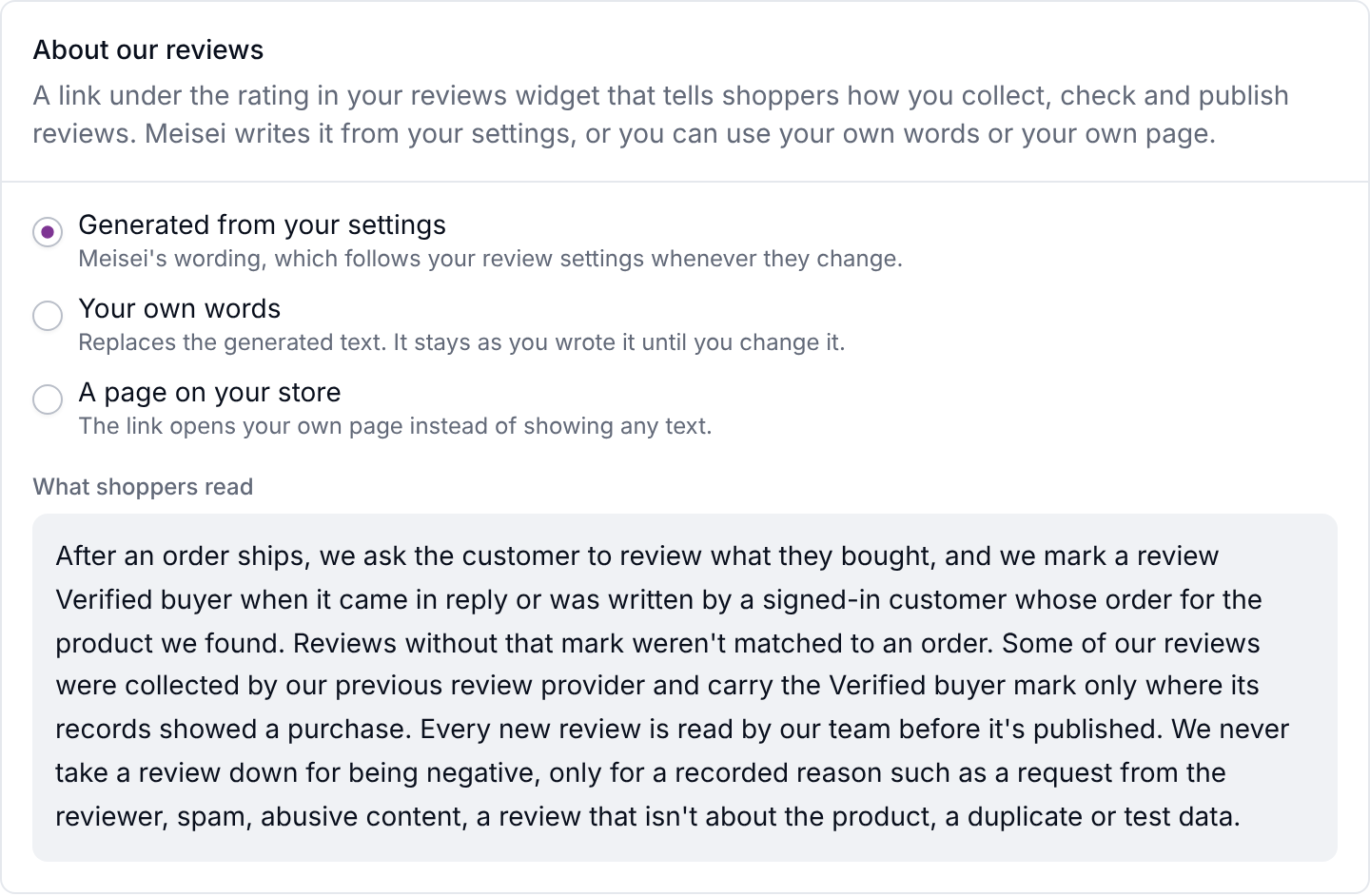
An "About our reviews" link sits under the star rating in your reviews widget. It opens a short statement telling shoppers how you collect reviews, what the Verified buyer badge means, and how new reviews are published.
Meisei writes the statement from your settings each time a shopper opens it, so it's always current. If you turn on automatic publishing, or only accept storefront reviews from verified buyers, the statement says so. You have three choices:
- Generated from your settings. The default. The preview shows exactly what shoppers read.
- Your own words. Starts from the generated text for you to edit. It stays as you wrote it, so update it yourself if you change how you handle reviews.
- A page on your store. The link opens a page of your own instead, if you already have one about your reviews.
There's no Save button. The first two choices save as soon as you pick them. Your own words and your page's address save when you click away from the box, as other settings do.
If you run more than one store, each has its own. A developer who lays out the widget by hand can move the link or leave it out: see React widgets.
Content screening
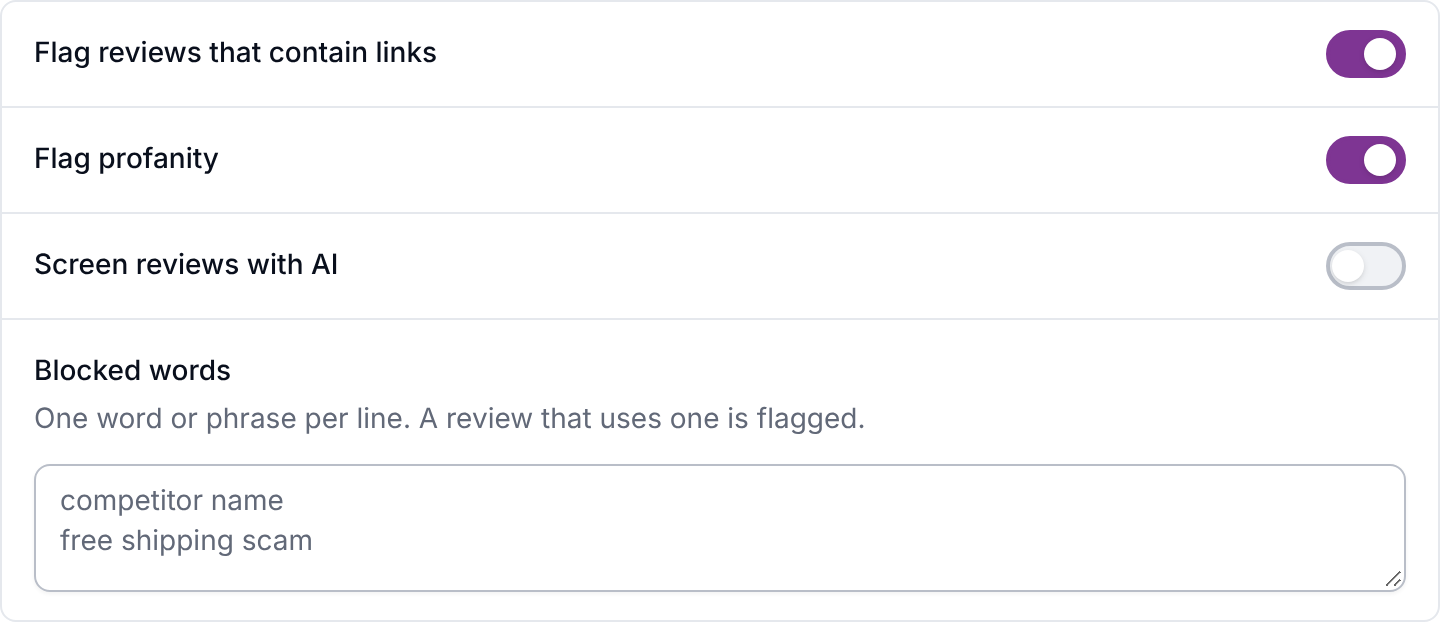
Three checks you can turn on separately:
- Blocked words: your own words or phrases, one per line.
- Flag profanity, using a built-in word list.
- Flag reviews that contain links, the strongest spam signal there is.
A flagged review waits for you and says why it was flagged. Screening never rejects anything on its own, so a false match only means a review waits for you.
Screen reviews with AI
An optional check that reads each new review and flags spam, advertising, abuse, off-topic text, or a review of the wrong product. Longer reviews are also checked for AI-written text. Nothing is rejected automatically. Not every plan includes it. See AI features.
Instant answers and review summaries
Two AI add-ons: a short answer for a shopper who asks a question, generated from that product's reviews, and a summary of what reviewers say shown above the review list. See AI features.
Notifications
- Notify us as reviews arrive emails your team the moment a review comes in, with a link to the queue. Choose every review, or only those at or below a rating you pick. Most stores want to hear about 1 and 2 star reviews right away.
- Send a daily summary sends one email a day covering the last 24 hours. Quiet days send nothing.
To post to Slack instead of, or as well as, email, see Sending Meisei to Slack.

Delete reviews with their product or customer
Off to start. Normally, deleting a product or customer keeps their reviews in Meisei, unpublished, so your rating history survives a catalog change. Turn this on if you'd rather the reviews were deleted too.
Next steps
- Set up the request email: Collecting reviews.
- Work the queue: Moderating reviews.
- Bring your old reviews across: Importing reviews.
- Answer shoppers from your reviews: AI features.