
Collecting reviews
Set up the review request email Meisei sends after each order. Almost every review you collect will come from one.
Set it up in a minute
- Open Settings → Features → Reviews and choose Send requests automatically. You can also start it from Settings → Automations: click Create automation and pick Send review requests.
- On the automation's page, check Count the days from and the wait under Configuration (see below), then save. Meisei sends one Review request email for each order from then on.
- Shape the email under Settings → Email templates. It leads with one product and links the rest. A bigger order reads better with every product listed the same way, which the template's Insert field menu can add.
- Decide whether new reviews go live on arrival with Automatically publish new reviews on the same Reviews settings page.
When to ask
Every order gets one request at most. The Send review requests automation decides when it goes out, and Settings → Features → Reviews shows its timing in the first row, When requests go out. Click it to open the automation and set two things under Configuration:
- Count the days from is the moment the wait starts:
- When the order is delivered is best if your store records it, since the wait starts when the customer has the product.
- When the order ships is a good default otherwise.
- When the order is placed suits digital goods.
- Days to wait goes from 0, which asks within the hour, up to 90 days. A week after delivery is a common starting point; two weeks for something that takes a while to judge. After a month, the request looks like the store lost track of the order.
To stop Meisei sending requests, switch the automation off. Your own emails can ask instead, which needs a developer. See Building review reminders. If Meisei isn't sending any, Send requests automatically, in the same place, turns the automation on.
The automation checks for orders that are due once an hour and only asks orders whose day came in the last three days, so importing years of order history never emails old customers.
If you write your emails in Klaviyo, switch on Send through Klaviyo instead. Meisei still decides who gets asked and when, and Klaviyo does the sending. A Klaviyo row appears under the switch and says whether Klaviyo is connected. See Klaviyo.
The request email
Every order uses the same Review request email. Edit its wording, branding and layout under Settings → Email templates, which the Request email row on the Reviews settings opens, where you can preview it before it goes anywhere. See Email templates.
Keep the star links in the email. A customer who clicks 4 stars lands on the review form with 4 stars already selected, so more of them finish the review.
Review requests are marketing mail, so they carry an unsubscribe link and never go to a customer who has opted out.
What the customer sees
The link opens a review page hosted by Meisei, branded with your store's logo and colors from Settings → Branding. It's three screens, built for a phone:
- The product's picture and name, and a star rating. Tapping a star saves the rating and moves straight on.
- Any review questions that apply, together on one screen.
- A headline, the review itself and any photos or videos, then Submit review.
Because the rating is saved on the first tap, a customer who stops after the stars still leaves you a rating, and what they write next is added to the same review. They can step back to change an answer, or come back through the same link within a day to add more. Your new-review email waits about ten minutes so it shows the finished review.
When they're done, the page shows the other items from the order, with pictures, so they can review the next one. Your primary color fills the stars, the button and the progress bar, so set one that matches your store. Nothing needs installing, and the review arrives marked as a verified buyer.
Watch requests go out
Reviews → Review requests lists every request with the customer, the order, when it was last sent and its status:
- Scheduled: waiting for its send date.
- Not sent: nothing is due, and it has never gone out. The customer may have opted out, or the order was canceled.
- Sent: the email has gone out at least once.
- Failed: the email couldn't be sent. Its page says why.
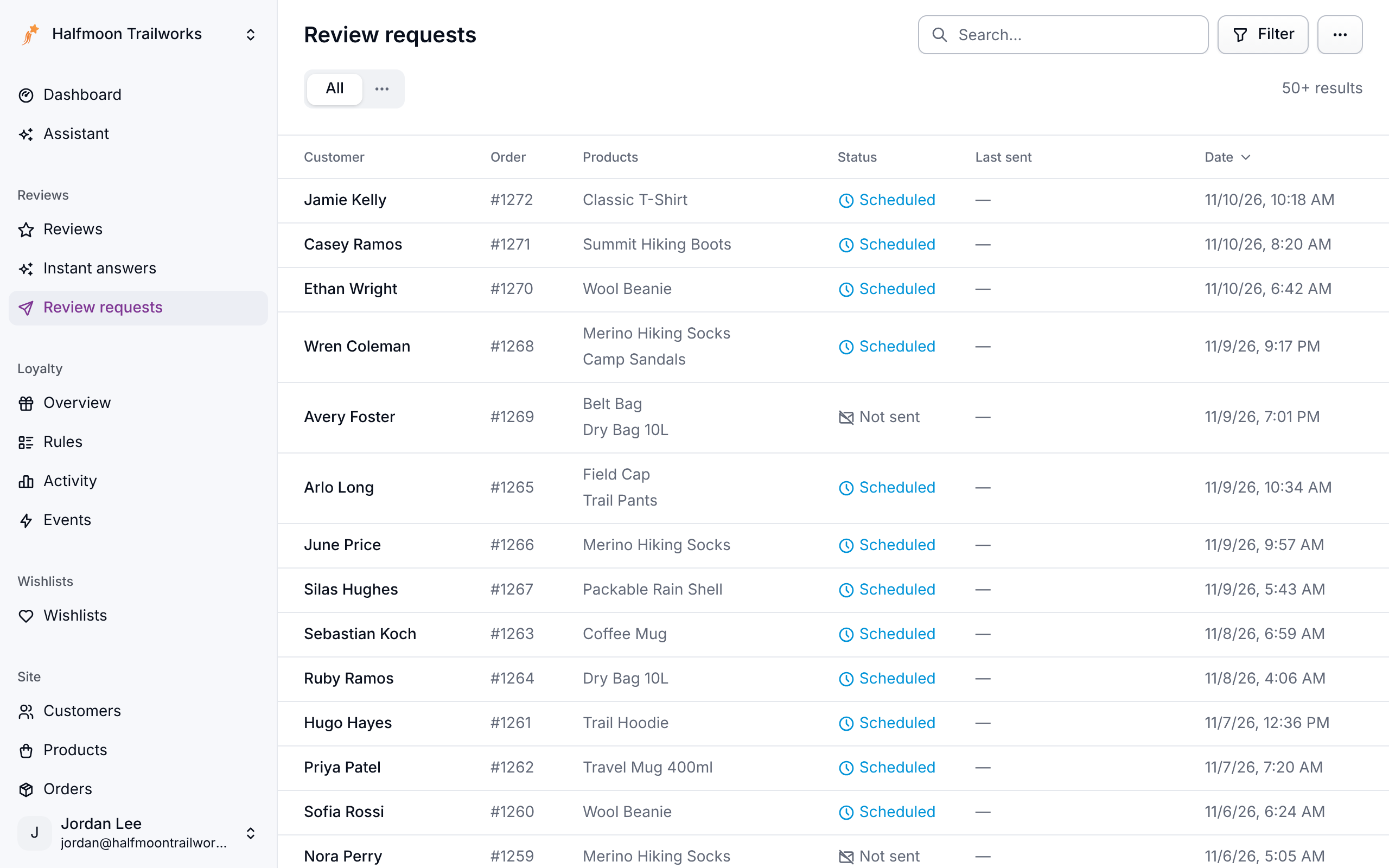
Click a request to see the products it asks about, when it's due, how many times it has been sent and how many reviews came back. Send now sends one that hasn't gone out yet, and Send follow-up asks again. Cancel a request that hasn't gone out when an order is refunded.
A follow-up is best kept for a customer who hasn't answered. To send them automatically, see Building review reminders.
Reviews without a request
The reviews widget's "Write a review" button lets a shopper review from your product page. A shopper who is signed in to your store and has an order for the product gets the Verified buyer badge. A guest's review never does, and their email is only used to stop the same person reviewing a product twice. To take reviews from buyers only, see Only accept storefront reviews from verified buyers. On Shopify, clear "Let shoppers write a review here" on the Product reviews block to turn the form off. See Storefront widgets.
If requests are not going out
- The automation is off. Choose Send requests automatically under Settings → Features → Reviews, or switch the Send review requests automation back on under Settings → Automations.
- The orders are too old. Only orders whose day came in the last three days are asked, so imported history is skipped on purpose.
- Orders aren't reaching Meisei. Check Orders.
- Orders never reach the trigger. Asking after delivery does nothing if your store never sends a delivery date. Count the days from shipping or from the order instead.
- They're going to Klaviyo. With Send through Klaviyo instead on, Meisei sends nothing itself. Check your Klaviyo flow.
- The customer opted out of marketing email. Their page under Customers says so.
- A request failed. Open it from Reviews → Review requests: the top of its page says why.
Next steps
- Building review reminders, to send reminders.
- Moderating reviews, to work the queue.
- Keeping your reviews trustworthy, to keep your reviews honest.
- Review questions, to ask extra questions.
- Importing reviews, to bring your old reviews across.
For developers
- On a custom integration, the shipped and delivered triggers read the
shippedAtanddeliveredAtfields on the order import. See Custom integration. - The request email needs
{{order.reviewUrl}}; star links append the rating to that URL. - Open and send requests yourself, or read their review links for your own email, with the
/surveysendpoints. See Building review reminders and the API reference. - Outside Shopify, turn the storefront form off with
data-meisei-review-form="false"on the reviews widget. POST /reviewstakes a review from anywhere you collect one: a kiosk, a support tool, your own form. See the API reference.